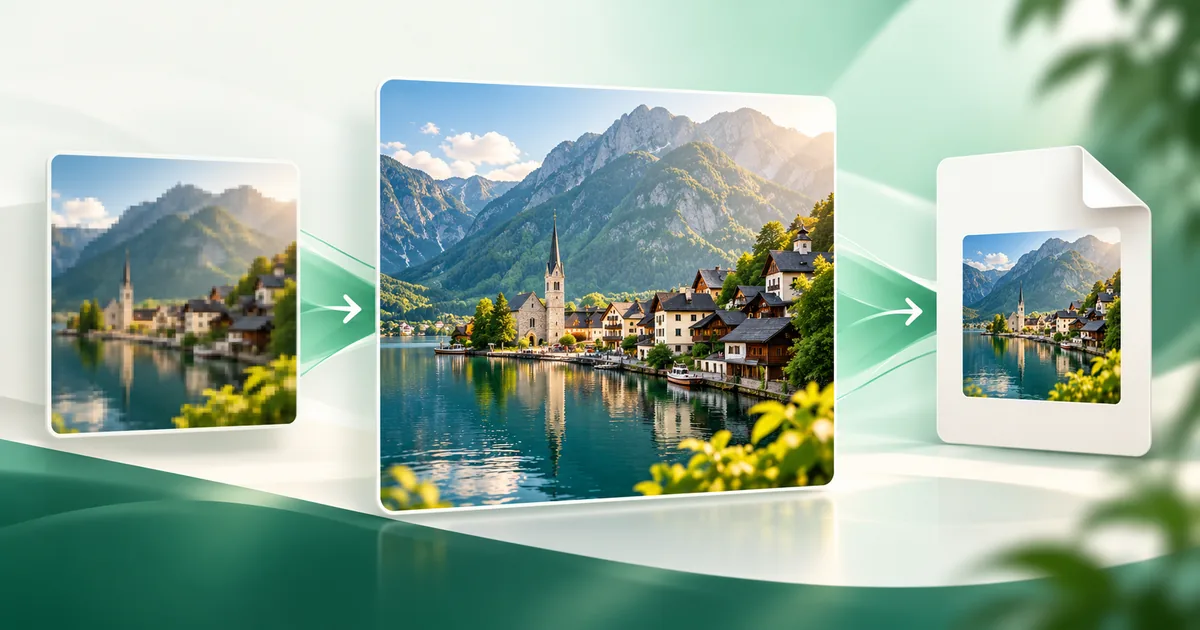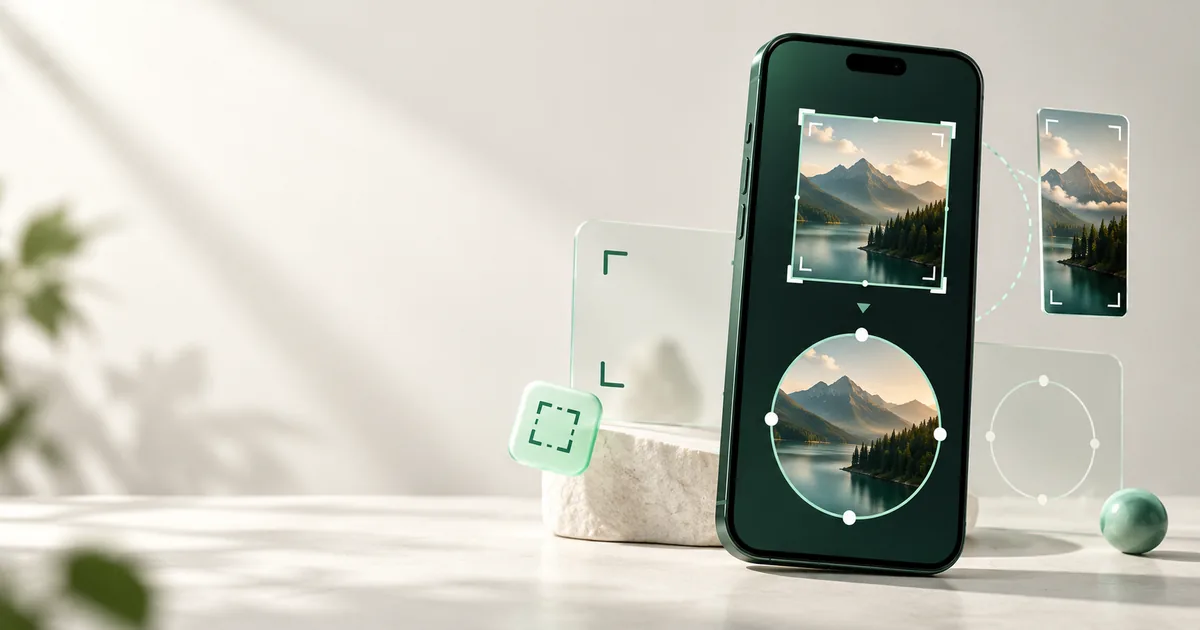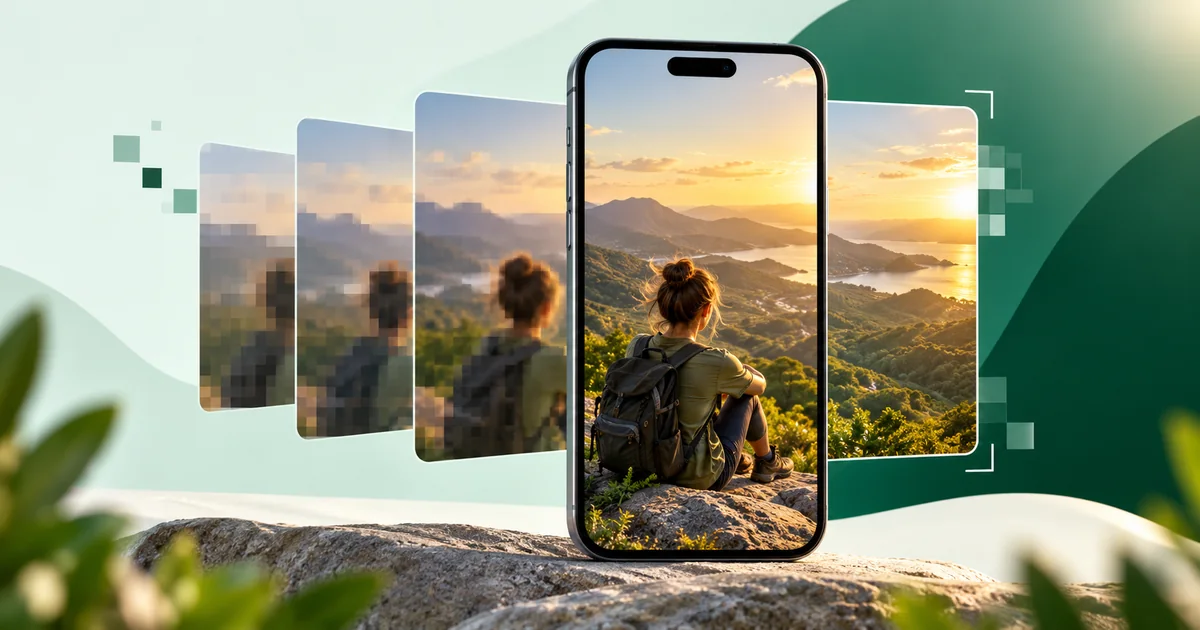
A blurry WhatsApp Status usually has two causes working together: the image was already undersized or compressed, then WhatsApp processed it again. Start with the original, prepare one clean 9:16 export, and upload that file directly. You can reduce visible damage, though you can’t switch Status to true HD or prevent all downstream processing.
What’s the quickest fix for a blurry WhatsApp Status?
Use the original image, resize it once to a 1080 × 1920 pixel 9:16 canvas, export a clean JPG for photos or PNG for sharp graphics, and upload that finished file directly to Status. Don’t start from a screenshot, a downloaded social post, or an image already sent through a chat.
WhatsApp’s own Help Center says Status media may have lower quality than the original. It also says the HD media option available in chats isn’t currently supported for Status updates. That means there is no honest “enable this setting and remove all compression” fix. The practical goal is to hand the app a clean file in the right shape so it has less resizing and damage to do.
Why does my WhatsApp Status get blurry?
Usually because the image was already undersized or compressed before WhatsApp processed it again. Compression gets blamed for everything, but the uploaded source often arrives with several disadvantages. Knowing which one you have makes the fix much easier.
| What you see | Likely cause | Best correction |
|---|---|---|
| The whole image looks soft | A small file was enlarged, or the camera missed focus | Return to the original; don’t upscale a thumbnail |
| Blocks appear in skies or shadows | Heavy JPG compression or repeated saving | Export once from a cleaner source at sensible quality |
| Text has fuzzy halos | A text graphic was saved as a low-quality JPG | Use PNG and make the lettering larger |
| The subject is cropped and soft | A landscape image was enlarged to fill a tall frame | Use Fit with a background instead of an extreme crop |
| A downloaded post looks worse again | It was compressed by one platform before WhatsApp | Export from the original design or photo |
Repeated compression is the quiet quality killer
Every lossy save throws away some image information. A photo exported from an editor, uploaded to a social network, downloaded, sent through a chat, screenshotted, and finally posted to Status has survived several separate conversions. The final WhatsApp pass isn’t acting on the camera original; it’s acting on leftovers.
That’s why file history matters more than a giant pixel count. A clean 1080-pixel-wide original can look better than a 4000-pixel image that has been downloaded and resaved repeatedly. More pixels don’t restore texture that has already disappeared.
The wrong shape can force unnecessary enlargement
Status is a tall mobile canvas. If you crop a wide group photo until it fills 9:16, you discard most of the scene and enlarge the narrow slice that remains. Faces that occupied a small part of the original are suddenly asked to fill the screen.
Crop works when the subject already occupies a strong vertical composition. For a landscape photo, group shot, flyer, or screenshot, Fit is often the cleaner choice. It preserves the source and uses a blurred or solid background to fill the remaining canvas.
What are the best settings for a clear WhatsApp Status image?
Our dependable starting point is 1080 × 1920 pixels, a 9:16 ratio, with one final export. Use these values as a preparation canvas rather than a promise about WhatsApp’s internal output.
| Setting | WaSize recommendation | Reason |
|---|---|---|
| Canvas | 1080 × 1920 px | A practical full-screen vertical working size |
| Aspect ratio | 9:16 | Avoids surprise framing on a typical phone screen |
| Photo format | JPG | Efficient for gradients, skin, scenery, and camera detail |
| Graphic format | PNG | Protects sharp type, logos, and flat-color edges |
| JPG quality | About 82–90% | A sensible balance before platform processing |
| Composition | Keep key content in the middle 80% | Leaves room for changing interface overlays |
There isn’t one permanent, official safe-area measurement for every phone and app version. Keep faces, prices, phone numbers, and small captions away from the extreme top and bottom. If the words are essential, make them larger than feels necessary in your design editor and check the result at actual phone size.
How do I fix a blurry WhatsApp Status in five steps?
- Find the original. Use the camera file, original download, or editable design. Avoid a screenshot or an image saved from a previous chat.
- Open the WaSize Status preset. It prepares a 1080 × 1920, 9:16 canvas in your browser.
- Choose Crop or Fit deliberately. Crop when the important subject comfortably fills a vertical frame. Choose Fit when cropping would cut off people, products, or text.
- Export for the content. Choose JPG for a photograph and PNG for a flat graphic, screenshot, or text-heavy announcement. Export once.
- Upload the finished file directly. Create a new Status and select that export from your device. Don’t pass it through another chat or editor first.
Should you make the file extremely small?
No. Pre-compressing a Status photo until it looks weak on your own screen only guarantees that WhatsApp starts with a weak image. You want a controlled, reasonable export—not the smallest possible file.
For an ordinary photograph, JPG around 82–90% quality is a useful starting range. A smooth portrait may remain clean at the lower end; foliage, hair, fabric, confetti, or night scenes may need more. Inspect edges and shadow areas before uploading. File size is a diagnostic clue, not a score to minimize.
How should I prepare photos, text, and screenshots differently?
Camera photos
Start from the original and use JPG. Don’t sharpen aggressively; bright outlines around hair and buildings can become more obvious after compression. A restrained edit with clean contrast usually survives better than heavy clarity, grain, or noise.
If the picture is horizontal, don’t assume a full-height crop is automatically better. A fitted photo with a subtle blurred background often preserves more meaningful detail than a dramatic crop that enlarges a small subject.
Posters, menus, and announcements
Use fewer words, larger type, and strong contrast. PNG is a sensible choice when the design contains flat colors and hard edges. Thin fonts, pale gray lettering, and dense price lists may be readable in your editor but fail once viewed on a phone and processed for Status.
If every line is essential, split one crowded poster into two or three Status frames. That improves readability more reliably than forcing tiny text into a single screen.
Screenshots
Take the screenshot at the device’s normal resolution, trim irrelevant browser or app chrome, and place it on the 9:16 canvas without enlarging it beyond what the text can tolerate. Save the composed result as PNG. If the source text is already tiny, recreating the important quote as real, larger text will look better than stretching the screenshot.
Which common fixes don’t really fix a blurry Status?
Upscaling a tiny image
Changing 360 × 640 to 1080 × 1920 creates more pixels, not more real detail. Use the original or accept a smaller fitted presentation.
Sending it to yourself first
A normal chat send can add another processing step. Move the file through local storage, a cable, or a cloud drive that preserves the original instead.
Choosing PNG for every photograph
PNG is excellent for text and flat graphics, but a PNG camera photo can become huge without gaining visible detail. Format should match the content.
Exporting at maximum dimensions
A massive file isn’t a shield against processing. It can still be resized, and an oversized canvas encourages unnecessary work. Start with a clean, suitable working size.
Looking for an HD Status toggle
The HD control applies to supported chat media. WhatsApp’s current official guidance says it isn’t available for Status updates, so tutorials that depend on that button are mixing up two different workflows.
FAQ: blurry WhatsApp Status images
Why does my WhatsApp Status look blurry?
WhatsApp may process Status media at lower quality than the original. A small source, screenshot, wrong aspect ratio, aggressive pre-compression, or repeated saving gives that processing less clean information to work with.
What image size should I use for WhatsApp Status?
WaSize recommends 1080 × 1920 pixels at 9:16 for a full-screen Status image. It’s a practical preparation size, not an official mandatory WhatsApp specification.
Can I upload a WhatsApp Status in HD?
No. WhatsApp’s official Help Center currently says HD media isn’t supported for Status updates. The HD option is available for supported media sent in chats.
Is JPG or PNG better for WhatsApp Status?
Use JPG for photographs. Use PNG for flat graphics, screenshots, logos, or designs with small text and sharp edges. Don’t use a huge PNG when a well-exported JPG photo is the better fit.
Can WaSize stop WhatsApp from compressing my Status?
No tool can promise that. WaSize gives you a controlled, correctly sized export, but WhatsApp may still process the file after upload.
Prepare once, then post the clean copy
You can’t remove WhatsApp’s Status processing, but you can avoid stacking your own quality losses underneath it. Return to the original, compose for the tall frame, match the format to the content, and export once.
For the broader dimensions behind profile photos, stickers, icons, and Status, use our complete WhatsApp image size guide.
Sources and how we checked
WhatsApp’s warning that Status media may have lower quality than the original, and the fact that the HD media option isn’t currently supported for Status updates, come from WhatsApp’s own Help Center pages listed below. The 1080 × 1920 canvas, the 9:16 ratio, the 82–90% JPG range, and keeping key content in the middle 80% are WaSize working recommendations, not official WhatsApp requirements. Last checked October 26, 2026.