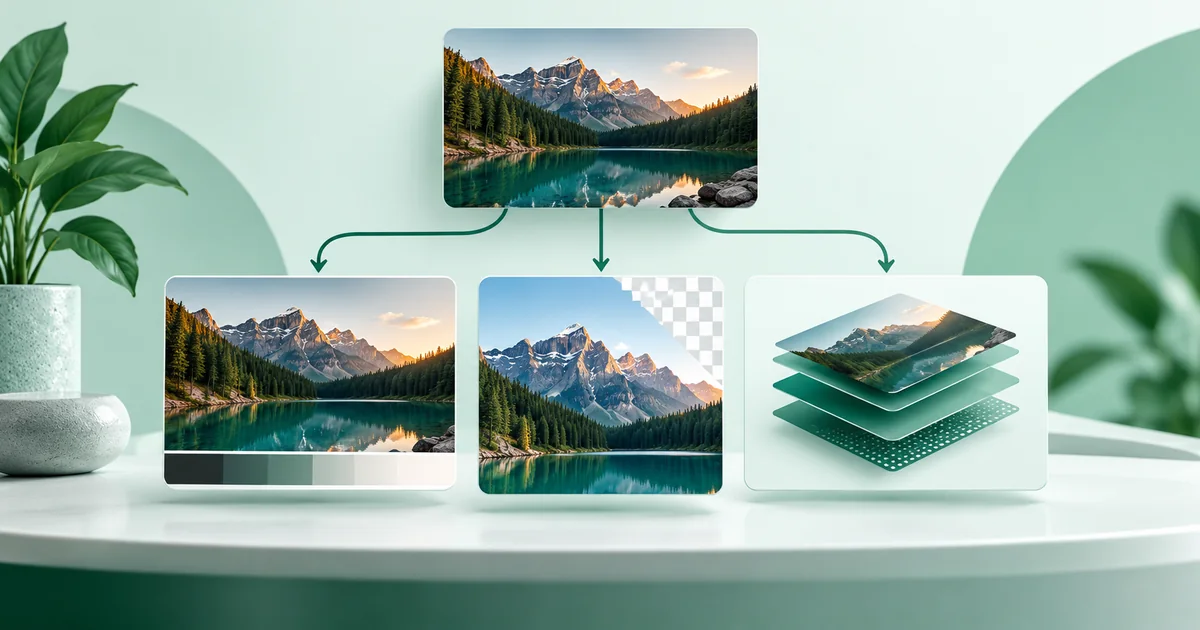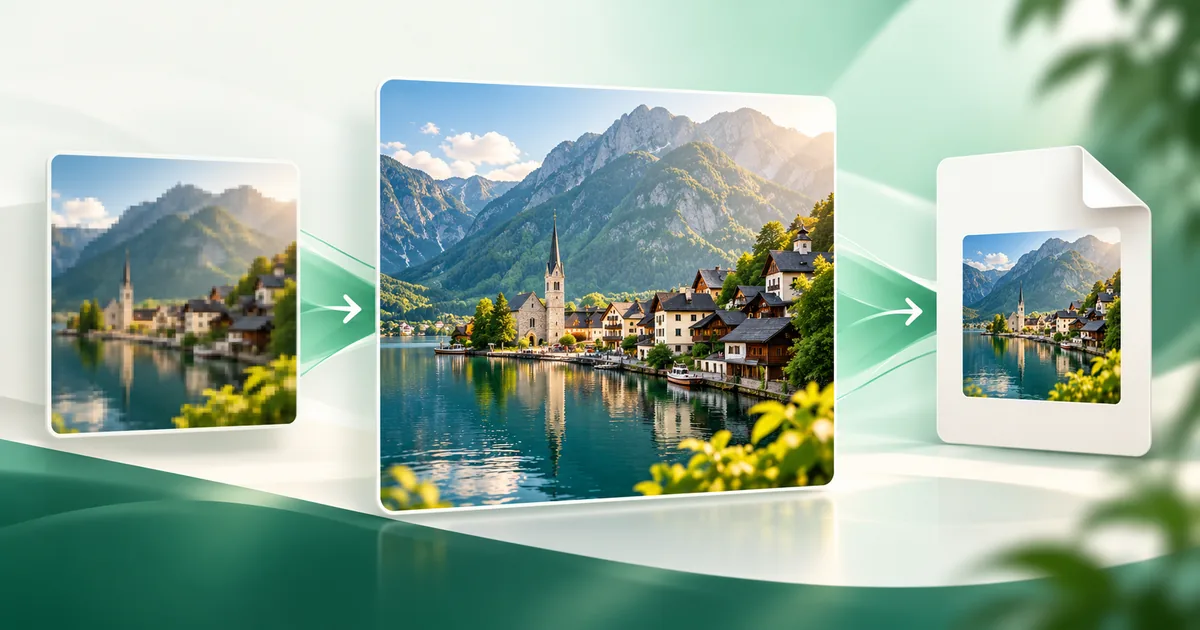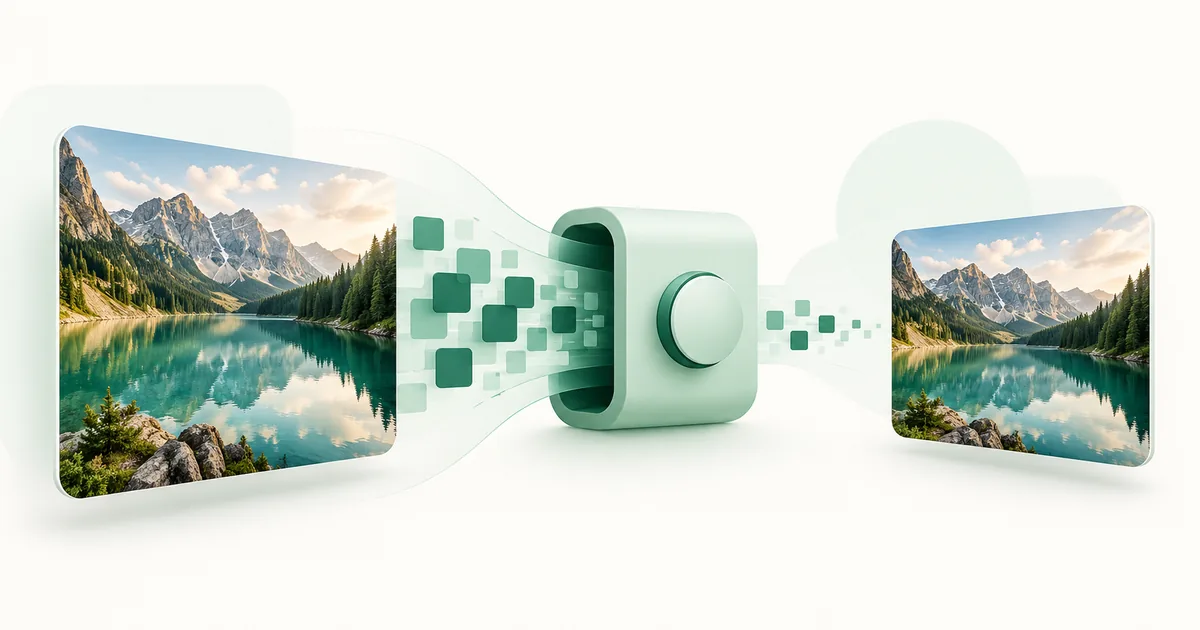
The safest way to compress an image for WhatsApp is to keep the original, resize a duplicate for its final use, and lower export quality gradually while watching the parts people notice: faces, lettering, edges, and smooth skies. For a normal photograph, JPG at roughly 82–88% is a sensible starting range. It is a WaSize recommendation, not an official WhatsApp rule.
What’s the quickest way to compress a photo for WhatsApp without blur?
Start with the original image, make a duplicate, resize it for the actual destination, export a JPG photo at about 85% quality, and inspect the result at normal viewing size. Use PNG instead when the image contains small text, flat graphics, or transparency. Keep the source file separately.
File size comes mostly from pixel dimensions, visual complexity, format, and export quality. A 48-megapixel camera image contains far more pixels than a chat screen can show at once. Reducing those unused dimensions often saves more space, with less visible damage, than forcing an enormous image through an extremely low quality setting.
What compression settings should I use for WhatsApp?
Choose settings for the destination, not for “WhatsApp” in general. Profile pictures, Status posts, and chat photos have different shapes and viewing conditions. WhatsApp does not publish one mandatory pixel size or compression percentage for all images, so the table below is practical WaSize guidance.
| Use | WaSize starting point | Format | What to protect |
|---|---|---|---|
| Chat photograph | 1600 px on the long edge; 82–88% quality | JPG | Faces, hair, texture, shadow detail |
| Status image | 1080 × 1920; 85–90% quality | JPG for photos, PNG for graphics | Central subject and readable text |
| Profile or group image | 640 × 640 square | JPG for photos, PNG for logos | Center detail that survives the circle crop |
| Screenshot or poster | Keep text comfortably readable; avoid needless upscaling | PNG | Thin lines and letter edges |
| Editing or print original | Do not resize the master | Original format | All source pixels and metadata you require |
These values are starting points, not targets you must hit. A simple portrait against a plain wall may tolerate more compression than a forest, crowd, fabric pattern, or graphic full of tiny type. Let the preview decide.
How do I compress an image for WhatsApp in six steps?
- Keep the original untouched. Work from a duplicate so you can start again or prepare a different version later.
- Decide where the image will appear. Choose chat, Status, profile, or group use before changing dimensions.
- Resize to useful dimensions. Remove surplus pixels rather than keeping a huge canvas and crushing its quality.
- Choose the content-appropriate format. Start with JPG for a photo and PNG for a screenshot, logo, or text-heavy graphic.
- Lower quality in small steps. For JPG or WebP, begin around 85%, compare the preview, and move only as low as the image allows.
- Download and inspect the real export. Open it outside the editor, check the dimensions and file size, then view faces, text, gradients, and detailed edges.
How small should the file be?
Use the smallest file that still looks good and sends reliably for your situation. There is no benefit in chasing an arbitrary number when the result develops halos, blocks, color bands, or unreadable type. Conversely, keeping an 18 MB camera file for a casual phone preview may waste data without creating a meaningful viewing difference.
If you have a specific delivery limit, use WaSize’s target-size control as a first pass and inspect the export. A target is a constraint, not a quality guarantee. Complex images may need more bytes than simple ones at the same dimensions.
Should I use JPG, PNG, or WebP for WhatsApp?
Use JPG for photos and PNG for screenshots, logos, and small text—and pick the format before you touch quality, because it can save more than another round of slider adjustments. Photographs and graphics compress differently because their visual information is different.
| Format | Best for | Watch out for |
|---|---|---|
| JPG | Camera photos, portraits, travel images, natural gradients | Low settings can create blocks and halos around text |
| PNG | Screenshots, logos, flat color, transparency, small lettering | Photo-heavy PNG files can become unnecessarily large |
| WebP | Efficient browser exports with photo or transparency support | Choose JPG or PNG if the recipient’s downstream workflow expects those formats |
Do not convert a low-quality JPG to PNG and expect detail to return. PNG can prevent additional lossy damage, but it cannot reconstruct texture removed by the earlier JPG save. Start from the best source instead.
For a closer comparison of transparency, compatibility, and the sticker-specific WebP requirement, read JPG vs PNG vs WebP for WhatsApp images.
How do I avoid visible blur and compression artifacts?
Judge the exported image, not just the file-size number. Inspect at the size a recipient will normally see, then zoom in once to catch obvious damage. Extreme magnification makes every lossy image look imperfect and can push you toward files that are larger than the use requires.
| What you see | Likely cause | Better adjustment |
|---|---|---|
| Soft faces or smeared hair | Dimensions or quality are too low | Raise quality first; restore some pixels if needed |
| Blocks in skies or walls | Aggressive JPG compression | Raise quality and export once from the source |
| Fuzzy text | JPG artifacts or type is too small | Use PNG and enlarge the lettering |
| Jagged logo edges | Small canvas or unsuitable photo format | Export a clean PNG at the final dimensions |
| Large file with little improvement | Excess dimensions | Resize the duplicate before lowering quality further |
Avoid repeated exports. Each time a lossy file is opened, edited, and saved again, it can discard more information. Complete the crop and size changes, then make one final compressed export from the clean source.
What’s the difference between compressing and WhatsApp’s HD setting?
WaSize controls the file before upload; WhatsApp controls the send path afterward. WhatsApp’s current Help Center says Standard quality uses less data and sends faster, while HD quality sends a clearer image with more data and time. HD media is available for chat photos and videos, but the Help Center says it is not currently available for Status updates or profile pictures.
If the recipient should see the clearest convenient in-chat photo, prepare one clean share copy and choose HD when sending. If speed and data use matter more, Standard may be enough. For a full comparison of HD, Standard, and attachments, read how to send high-quality photos on WhatsApp.
Neither setting can restore detail removed before the upload. WaSize also cannot promise that WhatsApp will leave an image unchanged. If the recipient needs an editing master or exact archive, preserve the source and use a file-delivery workflow designed for originals.
FAQ: compressing images for WhatsApp
What is the best image size for WhatsApp without losing quality?
There is no single official size for every WhatsApp image. WaSize recommends sizing for the destination: a 1600-pixel long edge for an efficient chat-photo copy, 1080 × 1920 for a Status, and 640 × 640 for a profile or group image. These are practical recommendations, not mandatory WhatsApp specifications.
Does WhatsApp compress images automatically?
WhatsApp offers Standard and HD media quality. Its Help Center says Standard uses less data and sends faster, while HD is clearer and uses more data. WhatsApp controls any processing after you upload the file.
Is JPG or PNG better for WhatsApp?
JPG is usually more efficient for photographs. PNG is usually better for screenshots, logos, flat graphics, transparency, and small text because it preserves hard edges.
Can I compress an image without losing any quality?
Lossy JPG and WebP compression discards some data, but careful resizing and moderate quality settings can make the visual difference hard to notice at normal viewing size. Keep the original when exact preservation matters.
Does WaSize upload my photo?
No. WaSize uses browser image APIs to resize, fit, crop, compress, and export supported images locally on your device.
Make a share copy, not a replacement original
The best compression habit is simple: preserve the source and create a purpose-built copy. Resize away pixels the destination cannot use, choose a format that suits the content, and lower quality only until the file is comfortably light. That produces a better result than applying harsh compression to an oversized image.
For a profile image that keeps the entire person visible, use the separate guide to fitting a full photo in a WhatsApp DP. It covers the square canvas and circular crop that compression alone cannot fix.
Sources and how we checked
The facts about WhatsApp’s Standard and HD quality—including that HD isn’t currently available for Status updates or profile pictures—come from WhatsApp’s own Help Center pages listed below, and MDN documents the browser export method WaSize uses to compress locally. The sizes and quality ranges in this guide (a 1600-pixel long edge, 82–88% JPG for chat photos, 1080 × 1920 for Status, 640 × 640 for profile images) are WaSize working recommendations, not official WhatsApp requirements. Last checked October 26, 2026.