Here’s the short version: prepare profile photos as squares, Status images as tall 9:16 canvases, and static stickers as 512 × 512 WebP files. The exact pixel count matters less than the shape for most photos—but it matters a lot for stickers.
What size should WhatsApp images be?
Use 640 × 640 px for a WhatsApp profile picture, 1080 × 1920 px for a Status image, and 512 × 512 px for a static sticker. Most other values below are practical export recommendations rather than mandatory WhatsApp specifications.
| Image type | Recommended size | Ratio | What matters |
|---|---|---|---|
| Profile picture (DP) | 640 × 640 px | 1:1 | Keep the subject inside the circular crop |
| High-detail DP | 800 × 800 px | 1:1 | Useful when the source is already sharp |
| Status image | 1080 × 1920 px | 9:16 | Protect text from top and bottom controls |
| Static sticker | 512 × 512 px | 1:1 | WebP, transparent, no more than 100 KB |
| Sticker tray icon | 96 × 96 px | 1:1 | No more than 50 KB |
| Group or channel icon | 640 × 640 px | 1:1 | Design for a circle |
| Channel cover | 1920 × 1080 px | 16:9 | Keep important content near the center |
| Chat photo | 1600 px on long edge | Any | Choose HD in chat when detail matters |
| Chat wallpaper | 1080 × 1920 px | 9:16 | Avoid busy detail behind message bubbles |
There isn’t one universal “WhatsApp image size.” Each placement has its own frame, and the app can change how it renders an image across devices. Treat the non-sticker dimensions as sensible working canvases: large enough to look clean, but not so huge that you’re shipping unnecessary data.
How we arrived at these recommendations
We compared the shapes used by WaSize’s working presets with the frames people actually encounter in profile, Status, sticker, and chat workflows. Then we exported sample photographs, logos, and transparent graphics at several resolutions. The goal wasn’t to find the largest file WhatsApp would accept. It was to find a dependable canvas that survives normal phone viewing without wasting bytes.
That distinction matters. Sticker dimensions and file limits are published requirements, so we label them as official. A 640 × 640 profile picture or a 1080 × 1920 Status image is a practical recommendation: a clean, repeatable starting point rather than a promise that every device internally stores that exact resolution. If WhatsApp changes a crop or interface overlay, the ratio and safe composition still do most of the work.
We also favor round numbers because they’re easy to recreate in any editor. You shouldn’t need a mysterious 937-pixel canvas to get a good result. Give the app a clean square or 9:16 frame, protect the subject, and avoid multiple rounds of saving. That approach held up better in our checks than obsessing over tiny differences in export dimensions.
What is the best WhatsApp profile picture (DP) size?
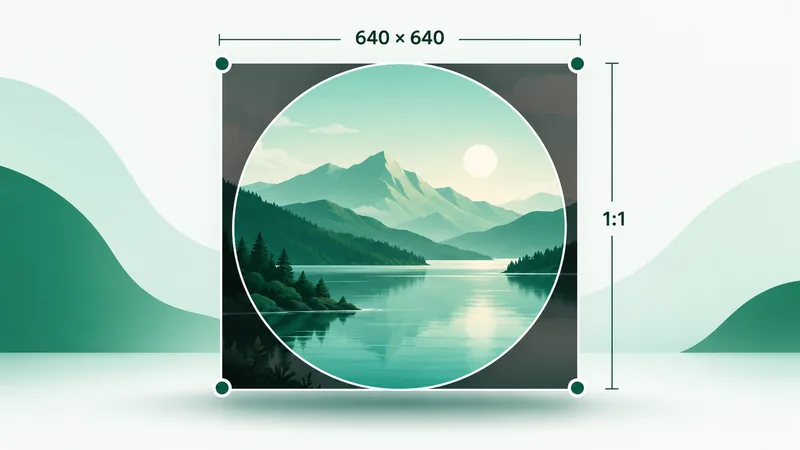
Our recommended WhatsApp DP size is 640 × 640 pixels. An 800 × 800 export is also fine if you’re starting with a detailed portrait or logo. WhatsApp accepts other square sizes, and its own help guidance has historically suggested a much lower minimum, but 640 px gives you comfortable editing room without making a needlessly large file.
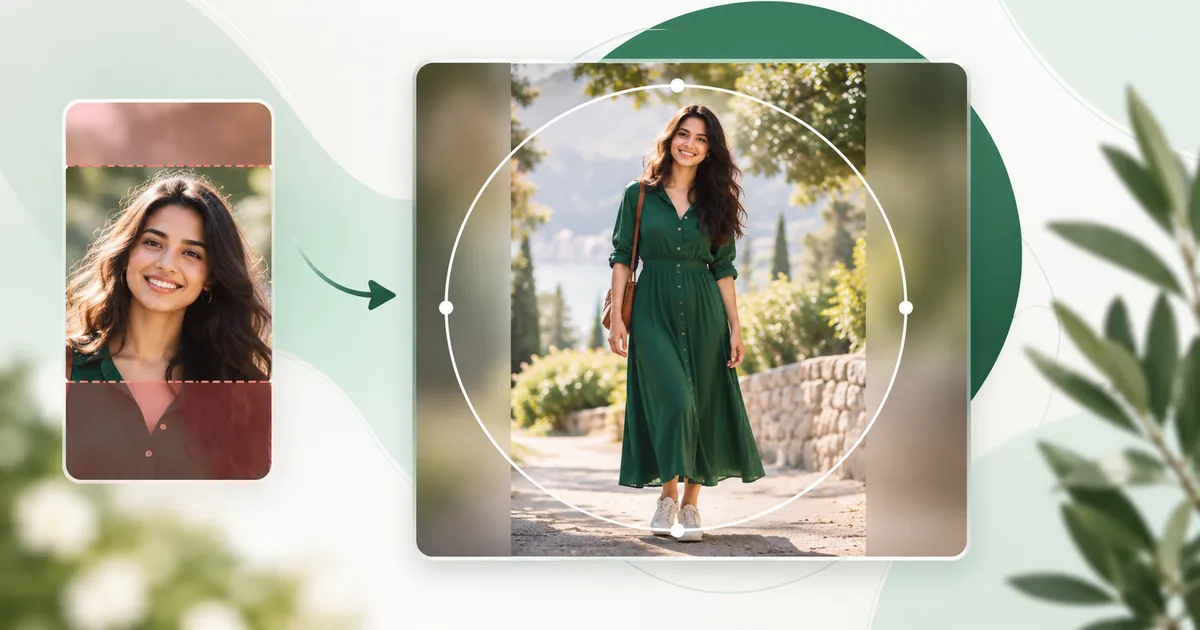
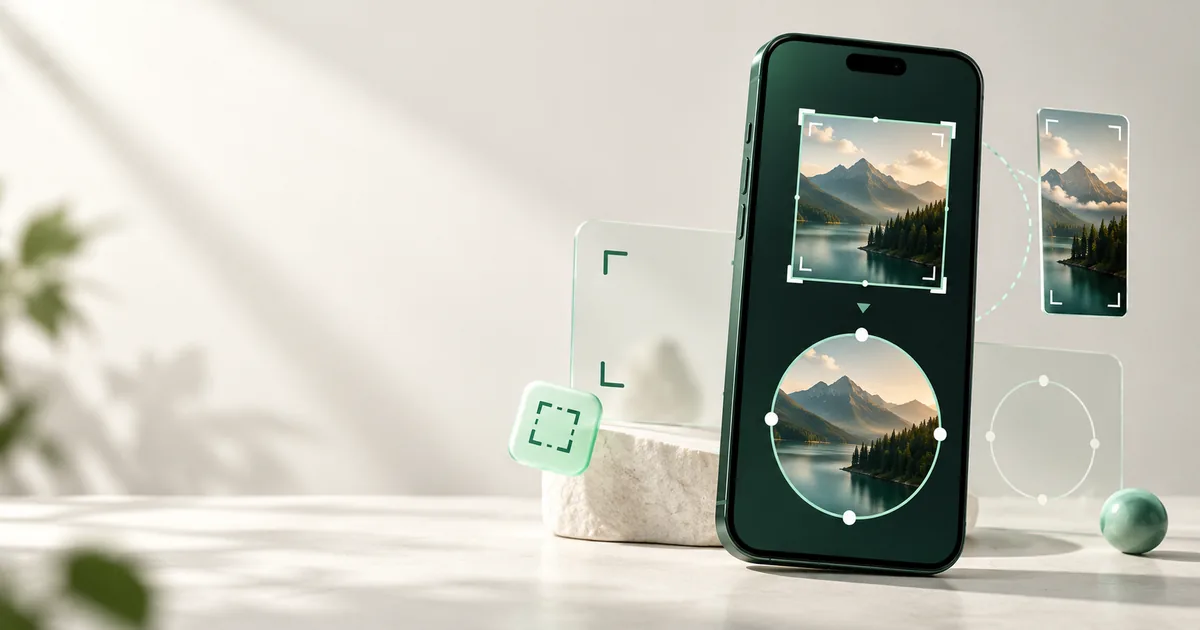
The important detail is the shape. You upload a square; WhatsApp displays it as a circle. Anything near the four corners disappears. That’s why a face positioned perfectly in a square thumbnail can suddenly lose hair, shoulders, or part of a logo once the circle is applied.
How to fit a full photo without cropping
- Open the WaSize DP preset and choose your photo.
- Select Full photo / No crop. This scales the whole photo inside a square instead of trimming the edges.
- Fill the unused space with a soft blur for a natural look, or use a solid color for a cleaner graphic.
- Check the circular preview. Keep eyes, faces, logos, and small text away from the outer edge.
- Export as JPG for a photograph or PNG when you need transparency or very crisp graphic edges.
For background choices, circle-safe composition, and upload steps, use the focused guide to fitting a full photo in a WhatsApp DP without cropping.
What size should a WhatsApp Status image be?
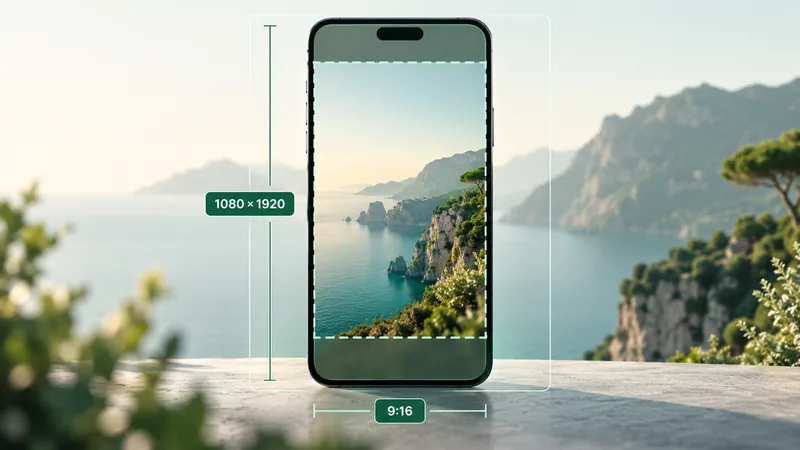
Use 1080 × 1920 pixels at a 9:16 ratio for a full-screen WhatsApp Status image. It matches the familiar vertical phone canvas and gives photos, announcements, and simple graphics enough resolution for modern displays.
A perfect 9:16 file can still feel cramped because WhatsApp places interface elements over it. Your profile and status information occupy the top area, while reply controls and other UI can sit near the bottom. There isn’t one permanent safe-area measurement for every phone, so the practical rule is simple: keep important text and faces comfortably inside the middle 80% of the canvas.
Portrait, square, and landscape photos
A portrait image close to 9:16 fills the screen naturally. A square or landscape photo needs a choice: crop it aggressively to fill the screen, or fit it inside the frame and add a background. For people and products, we usually prefer fit mode with a blurred background. It keeps the original composition and looks intentional.
- Choose the Status preset in WaSize.
- Switch between Crop and Fit to see which version protects the subject.
- Turn on the safe-area overlay before placing captions or logos.
- Export at 1080 × 1920. JPG at roughly 80–90% quality is a sensible starting point for photography.
If your correctly sized upload still looks soft, follow the focused guide to fixing a blurry WhatsApp Status. It explains source quality, repeated compression, Crop versus Fit, and when to use JPG or PNG.
What is the official WhatsApp sticker size?
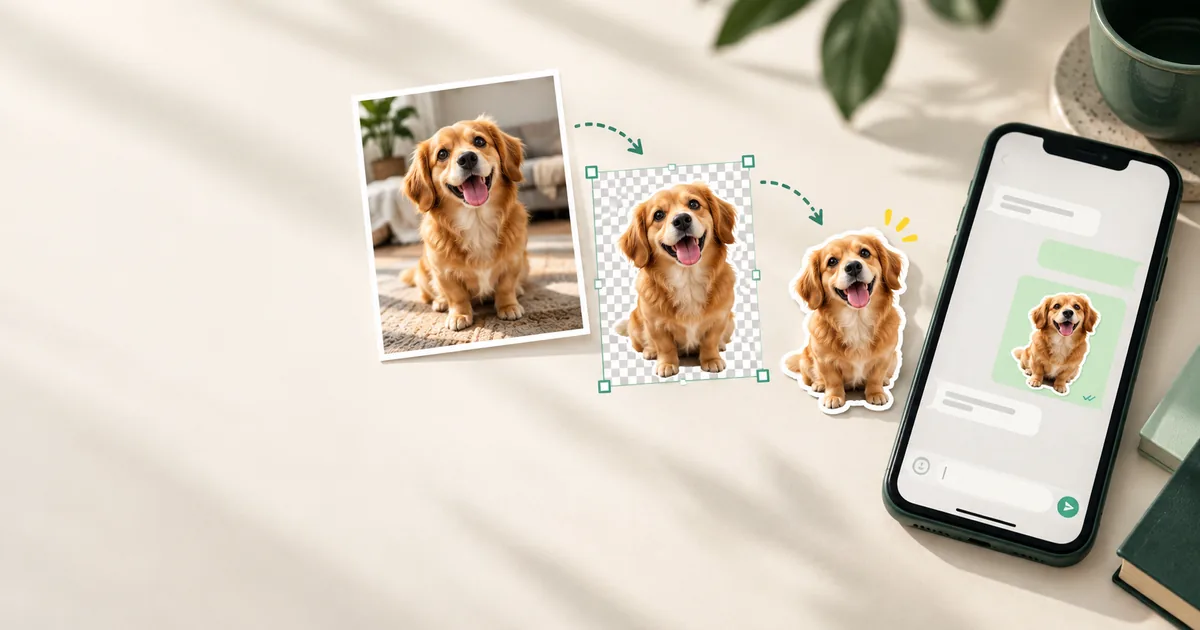
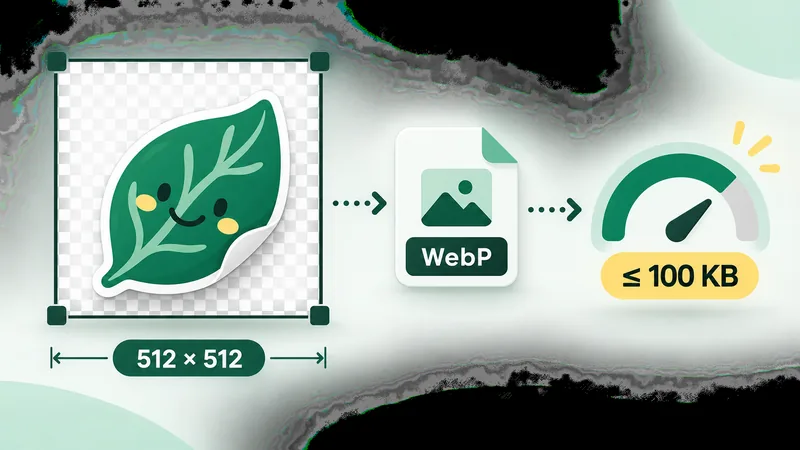
A static WhatsApp sticker is 512 × 512 pixels, saved as WebP, with a file size of 100 KB or less. The sticker should use a transparent background, and WhatsApp’s sticker guidance calls for a white outline and a small margin around the artwork. A tray icon is 96 × 96 pixels and no more than 50 KB.
How to make the file small without making it muddy
Start with clean edges and remove the background before compressing. Empty transparent pixels barely help the artwork but still affect how efficiently some tools encode it. Crop the design reasonably close, leave a deliberate margin, then reduce WebP quality gradually until the file falls under 100 KB.
Detailed photography is harder to squeeze into a sticker than a flat illustration. If your first export is too large, simplify tiny textures before crushing the overall quality. The result will look cleaner at chat size.
What size should WhatsApp group and channel icons be?
Use a 640 × 640 pixel square for group and channel icons. Like profile pictures, these icons are usually shown as circles. Center the meaningful part and keep names, thin borders, and small symbols away from the corners.
A group photo can tolerate a relaxed crop. A business or community mark needs more discipline: use a simplified logo, generous padding, and strong contrast. If the logo only works with its full wordmark, consider using the symbol alone for the icon.
For circle-safe group photos, logo padding, and upload permissions, read the focused WhatsApp group icon size and crop guide.
For a circular Channel icon plus square, portrait, and landscape update canvases, use the focused WhatsApp Channel image size guide.
How much does WhatsApp compress photos?
WhatsApp normally recompresses photos shared as media, which can soften fine texture and make text or line art look rough. The exact output isn’t a single permanent percentage; it depends on the image, the selected upload quality, the app version, and the sending context.
For chat photos, WhatsApp offers Standard and HD quality. Its official help center says HD produces clearer media but uses more data and takes longer to send. It also makes clear that HD is not currently available for Status updates or profile pictures.
For the exact send steps and the difference between HD, a document attachment, and an original-file transfer, see our guide to sending high-quality photos on WhatsApp.
| Format | Best for | Watch out for |
|---|---|---|
| JPG | Photos, gradients, compact files | Repeated saving creates artifacts; no transparency |
| PNG | Logos, text, screenshots, transparency | Photo files can become very large |
| WebP | Stickers and efficient web-style exports | Choose quality carefully for detailed photos |
Useful target sizes
- 100 KB: sticker limit territory or very lightweight simple graphics.
- 200 KB: a lean profile photo or modest Status graphic.
- 500 KB: a comfortable target for many clean 1080 × 1920 photographs.
- 1 MB: useful when the picture contains fine texture and you prefer quality over speed.
These are working targets, not upload rules. Pre-compressing gives you control over the first encoding step, but WhatsApp may still process the image again. Don’t take a tiny, already-soft picture and upscale it; that only creates more pixels, not more detail.
How do I resize an image without losing quality?
The best result starts with the original photo, not a screenshot or a copy downloaded from a previous chat. Resize once, export once, and use the right shape before you hand it to WhatsApp.
- Pick the destination first. DP, Status, and sticker files need different canvases.
- Choose crop or fit intentionally. Crop fills the frame; fit preserves every part of the source.
- Use a believable background. A subtle blur suits photos. A solid brand color suits logos and announcements. Transparency is right for stickers.
- Match format to content. JPG for photos, PNG for sharp graphics, WebP for a sticker or a compact modern export.
- Preview at actual size. A design that looks crisp while zoomed in can be unreadable as a small circular icon.
FAQ: WhatsApp image sizes
What is the best size for a WhatsApp profile picture?
Use a square 640 × 640 image for everyday use, or 800 × 800 when you want extra source detail. Keep the subject centered for the circular display crop.
What size should a WhatsApp Status image be?
1080 × 1920 pixels at 9:16 is the practical full-screen choice. Leave breathing room at the top and bottom for the interface.
What is the official WhatsApp sticker size?
A static sticker is 512 × 512 pixels in WebP, with transparency, and no more than 100 KB. The tray icon is 96 × 96 and no more than 50 KB.
How do I show my full photo in a WhatsApp DP?
Place it inside a square canvas using Fit or No Crop, then fill the spare space with blur, a solid color, or transparency.
Does WhatsApp compress images?
Usually, yes. Chat media has Standard and HD choices. HD preserves more detail, but the same HD control isn’t currently available for Status images or profile pictures.
Which format should I use?
Choose JPG for photos, PNG for crisp graphics or transparency, and WebP for stickers. If file size matters, JPG and WebP usually give you more control.
Keep the frame in mind
The numbers are easy to remember: 640 square for a DP, 1080 × 1920 for Status, and 512 square for a sticker. The better habit is remembering what comes next—the circular crop, the Status interface, or the sticker file limit.
Start with your original image, prepare it once, and preview the actual frame before downloading. That prevents most of the quality problems people blame on the final upload.
Want to build the artwork as well as resize it? Follow our practical guide to making WhatsApp stickers from your photos.
Sources and how we checked
- WhatsApp Help Center: HD photos and videos
- WhatsApp’s official sticker sample: art and app requirements
The sticker rules (512 × 512 WebP, transparent, no more than 100 KB, with a white outline and margin, plus the 96 × 96 tray icon at no more than 50 KB) come from WhatsApp’s official sticker sample. The Standard and HD chat photo options, and the fact that HD isn’t currently available for Status or profile pictures, come from WhatsApp’s Help Center. Every other number here, including 640 × 640 for DPs and icons, 1080 × 1920 for Status and wallpapers, the 1920 × 1080 channel cover, 1600 px chat photos, JPG quality settings, and the KB targets, is a WaSize working recommendation, not an official requirement. Last checked October 26, 2026.