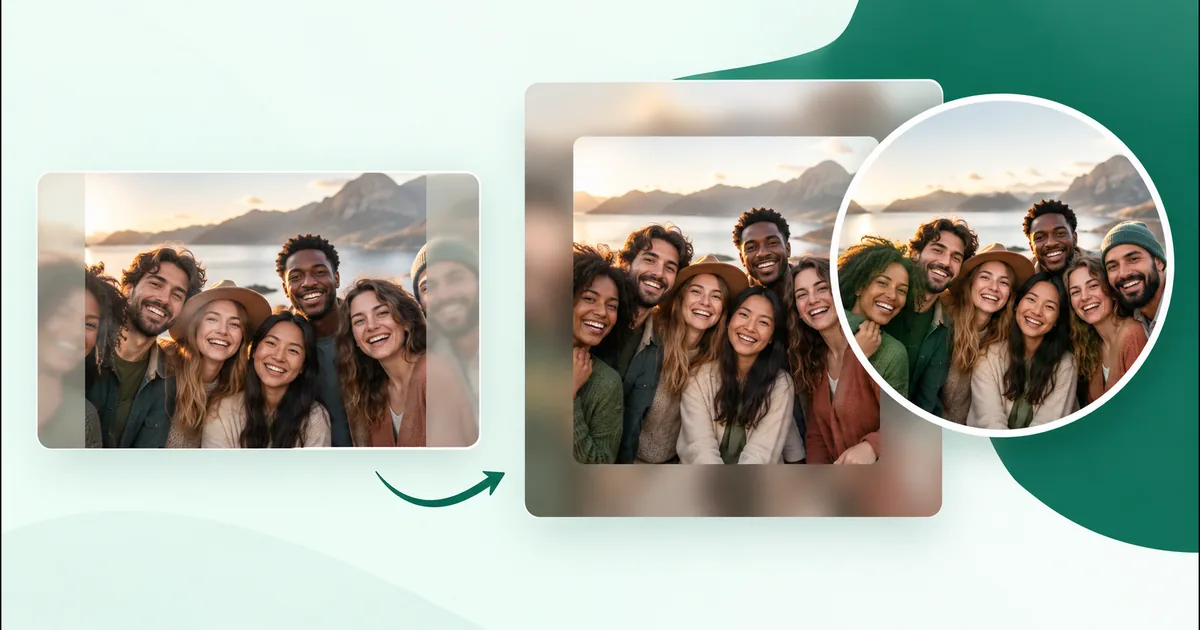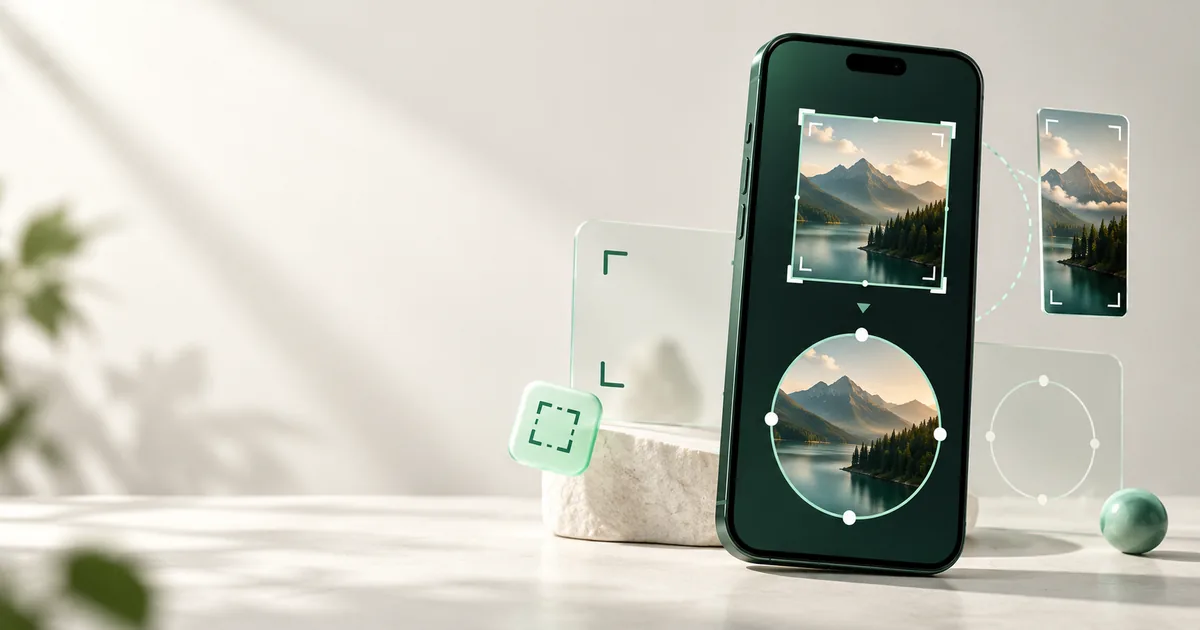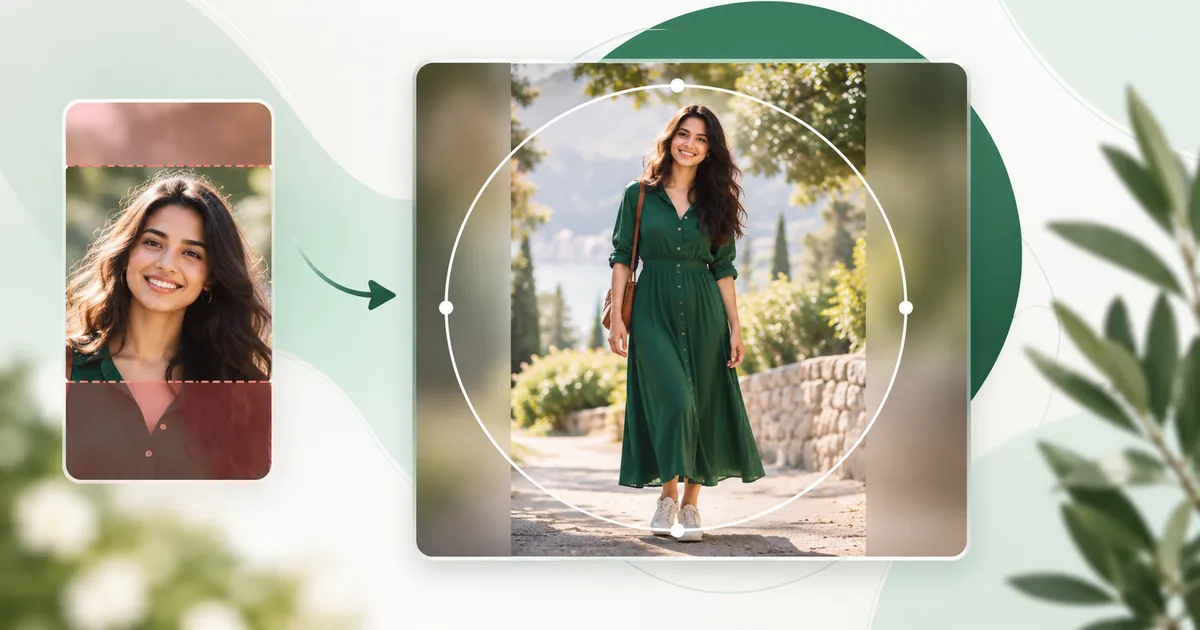
To show your full photo in a WhatsApp DP, don’t stretch it and don’t force it to fill the frame. Scale the complete image down until it fits inside a square, fill the empty area intentionally, and use a circular preview to protect the important parts. The added space becomes part of the file, so WhatsApp no longer needs to cut the original photo itself.
How do I keep my whole photo in a WhatsApp DP?
Put the full portrait or landscape photo inside a 640 × 640 square canvas, use blur or a solid color behind it, and check the result through a circular preview before exporting. JPG is the sensible default for photos; PNG is useful when the padding needs transparency or the image is a crisp graphic.
This technique is often called “no crop,” but the phrase can be misleading. WhatsApp may still present a circular view of your square upload in many places. The trick is that the circle cuts into the added background—not the person, group, outfit, logo, or product you wanted to keep.
Why does WhatsApp crop my profile photo?
The shapes do not match. A phone portrait is tall, a group photo is often wide, and a WhatsApp profile source is prepared as a square. In many placements, that square appears inside a circle. One image is being asked to work in two nested frames.
If you choose a fill-style crop, the photo grows until every edge of the square is covered. A tall portrait loses its top and bottom; a wide picture loses its left and right sides. The more extreme the source ratio, the more has to disappear.
| Source photo | Fill the square | Fit the full photo |
|---|---|---|
| Tall portrait | May cut hair, feet, or clothing | Adds space at the sides |
| Wide group photo | May remove people near the edges | Adds space above and below |
| Square headshot | Usually needs only small repositioning | Little or no padding needed |
| Logo or product | Can trim corners or labels | Preserves the complete shape |
You can’t have a non-square photo fill a square, preserve its original proportions, and keep every edge simultaneously. One of three things must happen: the image gets cropped, it gets distorted, or some background space is added. Adding space is the only option that preserves both the whole picture and its natural proportions.
What’s the best way to show the whole photo?
Fit the source inside a square canvas and make the padding look deliberate. This is better than squeezing the photo, because faces and bodies keep their real proportions. It is also more predictable than hoping WhatsApp’s crop screen will reveal enough of a tall or wide original.
For an everyday DP, WaSize recommends 640 × 640 pixels. An 800 × 800 square is also reasonable if the original is sharp and you want more working detail. These are export canvases, not promises about how WhatsApp stores or renders the result internally.
The circle matters more than the difference between 640 and 800 pixels. A square’s corners sit outside its largest inscribed circle, so anything parked there can disappear from the common circular view. Keep the meaningful content closer to the center and let the background occupy the vulnerable corners.
How do I fit a full photo in a WhatsApp DP with WaSize?
- Open the WaSize DP preset. It creates a 640 × 640 square canvas and turns on the circular preview for composition.
- Select the original photo. Start with the camera file or cleanest available copy, not a screenshot or an image already downloaded from a chat.
- Choose Full photo / No Crop. WaSize scales the entire source into the square. A tall image gains space on the sides; a wide image gains space above and below.
- Choose the background. Use a soft blur for a photographic look, white or black for a simple frame, a custom color for a brand, or transparency when you specifically need it.
- Check, export, and upload. Make sure every essential detail is inside the circle, then export as JPG for a normal photo or PNG for transparency and crisp graphic edges.
How to change the finished profile photo
WhatsApp’s current steps differ slightly by device. On a phone, open Settings, tap your profile photo, choose the edit control, and select a photo from your gallery. On WhatsApp Web, open your profile, select the existing image or “Add profile photo,” and upload the WaSize export. WhatsApp can change labels during updates, so follow the edit or camera control visible on your version.
When the crop screen appears, avoid zooming in again. Keep the complete prepared square in view and move it only enough to center the circular composition. If you enlarge it until the padding vanishes, you are recreating the crop you just fixed.
Blur, solid color, or transparent padding?
A subtle blurred background is the safest default for a full-body portrait or group photo. It borrows color from the image, fills the square naturally, and keeps attention on the sharp foreground. Blur should support the subject rather than compete with it.
| Background | Best for | Watch for |
|---|---|---|
| Blurred photo | Portraits, travel photos, groups | A busy or overly sharp blur can distract |
| White or light solid | Products, documents, clean headshots | Pale clothing may lose contrast |
| Black or dark solid | Night photos, bright subjects, dramatic portraits | Dark hair or clothing may merge into it |
| Custom brand color | Business profiles, logos, campaigns | Strong saturation can overpower a face |
| Transparency | Reusable graphics and specific workflows | The receiving app may render transparency unexpectedly |
For a photo, a solid background sampled from the image can look cleaner than blur. Pick a quiet sky, wall, or clothing color, then make it slightly lighter or darker so the foreground remains distinct. Avoid decorative borders that become uneven when the square is viewed as a circle.
How do I compose a DP for the circle, not just the square?
Keep the subject large, centered, and inside the circular preview. A no-crop square can technically contain the whole image while still producing a weak profile picture. The visible subject might be tiny, off-center, or partly outside the circle. Use the circular preview as the real decision surface.
Keep essential details away from the corners
The corners are useful background space, not safe space for faces, logos, phone numbers, or product labels. For a group photo, bring the people into a compact center area if the original composition allows it. If people already touch both edges of a very wide frame, preserving the whole scene may make everyone too small; a closer group crop can be the more useful profile picture.
Leave visual breathing room
Don’t let the top of a head, a hat, or a product edge sit exactly on the circle. A small margin looks intentional and survives minor differences in rendering. For a person looking sideways, leave slightly more room in front of their gaze. Optical balance usually feels better than rigid mathematical centering.
Use readable graphics
A DP is not a miniature poster. Small slogans, contact details, and thin logo text are hard to read at chat-list size. Keep one recognizable mark, use strong contrast, and remove copy that only works when enlarged. If the account needs detailed business information, put it in the appropriate profile fields instead of forcing it into the image.
How do I export a DP without losing quality?
Start from the original, resize once, and upload that finished file directly. Repeated saving is more damaging than choosing 640 instead of 800 pixels. A screenshot of a compressed social post already has less clean detail before WhatsApp touches it.
Use JPG for an ordinary photograph. A quality setting around 85–90% is a sensible starting point: high enough to keep faces and hair clean, without creating an oversized file. Use PNG for a logo, illustration, text-heavy graphic, or transparent padding. Saving every camera photo as PNG usually adds weight without recovering detail.
WhatsApp’s current Help Center says the HD media control used for supported chat attachments is not available for profile pictures. There is no separate HD toggle to solve a weak source. A clean original, one controlled square export, and sensible composition are the practical controls you have.
FAQ: full-photo WhatsApp profile pictures
How do I fit my whole photo in a WhatsApp profile picture?
Place the complete photo inside a square canvas instead of enlarging it to fill the square. Fill the unused area with a blur, solid color, or transparency, then make sure the important content stays inside a circular preview.
What size should a WhatsApp DP be?
WaSize recommends 640 × 640 pixels for everyday profile photos or 800 × 800 when the source is already sharp. Both are square working canvases. They are practical recommendations, not official mandatory WhatsApp dimensions.
Why does WhatsApp crop my profile photo?
A tall or wide photo has a different shape from the square upload canvas and circular display. Filling the frame requires trimming edges. Fit mode preserves the photo and puts intentional space around it instead.
Is a blurred or solid background better for a no-crop DP?
Blur usually blends naturally with a portrait or group photo. A solid color is often cleaner for logos, products, illustrations, and formal headshots. Choose whichever creates the clearest separation from the subject.
Can I upload a WhatsApp profile picture in HD?
WhatsApp’s current Help Center says its HD media option is not available for profile pictures. Use a clean original and one deliberate export, but don’t expect a separate HD profile-photo switch.
Preserve the photo, then protect the circle
No-crop is not a secret WhatsApp setting. It is a composition method: turn the full source into a square before uploading, then make sure the circular view contains everything that matters. The padding is what gives your photo room to survive.
For profile, Status, sticker, group-icon, and chat-image dimensions in one place, see the complete WhatsApp image size guide.
Sources and how we checked
How to upload and change a profile photo, the fact that WhatsApp’s HD media option isn’t available for profile pictures, and who can see your profile photo all come from WhatsApp’s own Help Center pages listed below. The 640 × 640 and 800 × 800 square canvases, the 85–90% JPG starting point, the background choices, and the advice to keep key details inside the circle are WaSize working recommendations, not official WhatsApp requirements. Last checked October 26, 2026.