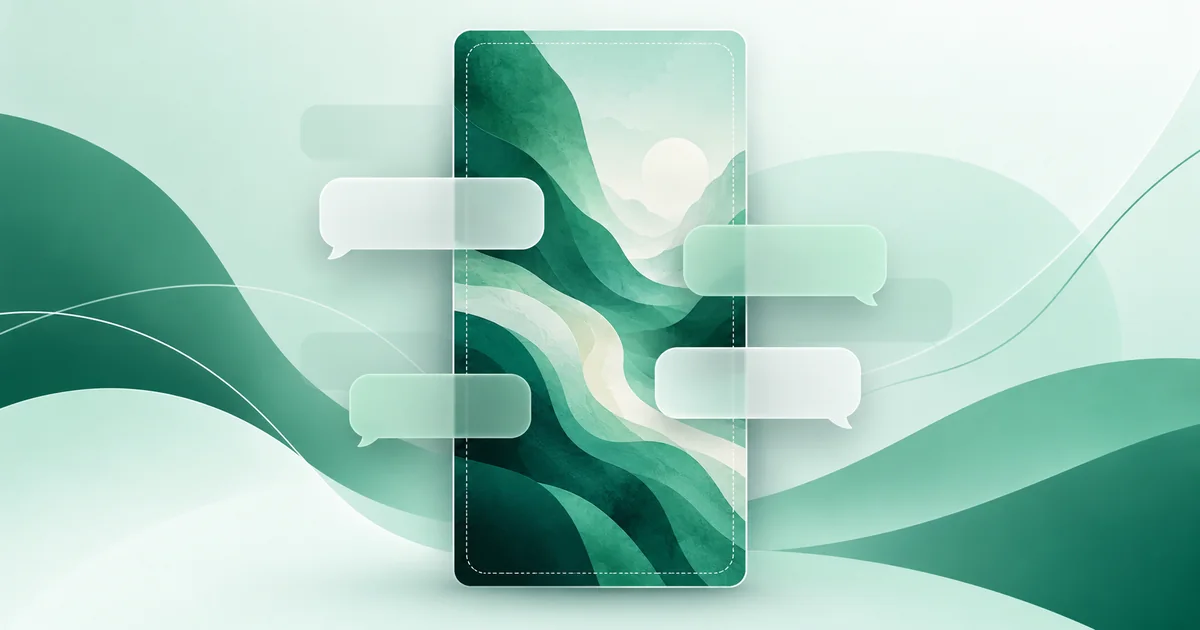
Use a tall image around 1080 × 2400 pixels at a 9:20 ratio for a practical WhatsApp chat wallpaper. Keep the focal point near the center, leave the top and bottom visually quiet, and lower contrast so message bubbles remain easy to read. This is a WaSize recommendation, not an official WhatsApp requirement.
What makes a good WhatsApp chat wallpaper?
Start with a 1080 × 2400 canvas, place important details near the center, use a calm or softened background, and preview the crop on your phone before keeping it. Choose JPG for a photograph and PNG for a flat illustration or crisp pattern.
A beautiful full-screen photo can make a poor chat wallpaper. Messages cover the center, the header occupies the top, and the composer sits at the bottom. Different screens may reveal or crop different portions. Your goal is not to preserve every edge of the source; it is to create a background that still works when interface elements and messages sit on top.
What size should a WhatsApp chat wallpaper be?
Use 1080 × 2400 pixels at 9:20 when you want a reliable tall starting canvas. It matches the general shape of many current phone screens and provides enough detail for a clean background without requiring a huge camera file.
| Wallpaper type | WaSize starting point | Best format | Composition advice |
|---|---|---|---|
| Photo wallpaper | 1080 × 2400, 9:20 | JPG | Keep the subject centered and soften busy detail |
| Illustration or pattern | 1080 × 2400, 9:20 | PNG | Use low-contrast, evenly distributed shapes |
| Minimal gradient | 1080 × 2400, 9:20 | JPG or PNG | Check for visible color banding after export |
| Source for several devices | Larger tall master, then device-specific copies | Original format | Reframe rather than stretching one fixed crop |
More pixels are not automatically better. A 6000-pixel camera image may be needlessly heavy and harder to crop deliberately. Prepare a separate wallpaper copy while keeping the original untouched.
Where should important details go so they survive the crop?
Put the focal point near the middle and treat every outer edge as expendable. A wallpaper may be scaled or cropped to fit the available chat region. The exact visible shape depends on the device, orientation, and interface layout, so a fixed pixel-safe area would create false confidence.
Use these composition rules instead:
- Keep faces, initials, and recognizable objects away from the extreme top and bottom.
- Leave breathing room around the subject so a small crop does not feel accidental.
- Avoid placing a horizon exactly behind the usual message region if it makes bubble edges hard to distinguish.
- Let decorative texture continue beyond the important subject; repeating patterns tolerate crop changes well.
- Do not add essential text. Messages and interface controls can cover it, and small lettering becomes distracting.
A centered subject is the safest default, but it does not need to sit at the mathematical center. A portrait can sit slightly above center while leaving the busiest lower area open for messages. What matters is that the subject survives modest reframing.
How do I keep messages readable over a custom wallpaper?
Reduce contrast and detail before you reduce resolution. A sharp, high-contrast wallpaper can make chat bubbles appear visually unstable even when the image itself is technically excellent. The conversation should remain the foreground.
| Problem in the background | What it does to the chat | Better adjustment |
|---|---|---|
| Bright and dark patches mixed together | Bubble edges change clarity from message to message | Add a soft, even overlay or lower contrast |
| Fine texture across the whole image | Competes with small text and timestamps | Apply gentle blur or simplify the crop |
| Large face behind the center | Messages repeatedly cover the focal point | Scale down or reposition the portrait |
| Important detail at an edge | Different screen crops may remove it | Move it inward and extend the background |
| Strong color behind similar bubbles | Incoming or outgoing bubbles can lose separation | Test with the intended chat color and theme |
Check both light and dark appearances
A wallpaper that feels subtle with one bubble color can become harsh with another. WhatsApp currently supports chat themes that combine a wallpaper and chat color, and its Help Center describes multiple chat colors. Preview your image with the theme you actually intend to use. If you switch between light and dark device appearances, check both before settling on one version.
How do I prepare a custom chat wallpaper?
- Choose a suitable source. Start with a tall, high-resolution photo or illustration that has calm areas around its focal point.
- Select the Wallpaper preset. In WaSize, use 1080 × 2400 as a practical 9:20 canvas.
- Position the focal point. Keep important content near the center and away from the extreme top, bottom, and corners.
- Reduce visual noise. Choose a simpler crop or soften contrast so the image can sit behind text comfortably.
- Export for the content. Use JPG for a photograph or PNG for crisp flat artwork. Keep the original separately.
- Preview on the intended phone. Set the image, inspect the crop with real messages, and adjust the source copy if the subject or bubble contrast feels wrong.
How do I set a custom wallpaper in WhatsApp?
Choose Wallpaper under Default chat theme to change every chat, or under a chat's Chat theme to change just that one. WhatsApp's official instructions vary slightly by platform and app layout, so use the labels shown in your current version.
Set a wallpaper for all chats
- Open WhatsApp Settings or your profile menu and choose Appearance.
- Open Default chat theme, then Wallpaper.
- Choose the option to select an image from your photos.
- Pick your exported wallpaper, adjust the preview if offered, and confirm it.
Set a wallpaper for one chat
- Open the chat and its chat information or options.
- Choose Chat theme, then Wallpaper.
- Select your image from photos and confirm the result.
The current Help Center also lists preset wallpapers, solid colors, and AI-created wallpapers on supported versions. Feature availability and menu wording can vary by platform, account, and region, so a missing option does not necessarily mean your image is unsuitable.
How do I fix common WhatsApp wallpaper problems?
The image looks zoomed or cropped
Return to WaSize and use Fit if preserving more of the source matters. If the resulting empty areas look awkward, extend the scene with a solid or blurred background rather than stretching the image. Keep the important subject smaller within the tall frame.
Messages are difficult to read
Lower the wallpaper's contrast and saturation, or choose a calmer crop. Test both incoming and outgoing bubbles because their colors differ. A detailed center often causes more trouble than detailed edges.
The wallpaper looks blurry
Start from the original rather than a screenshot or forwarded copy. Export at 1080 × 2400 and avoid repeated lossy saves. If the source is already small, increasing its dimensions cannot recreate genuine detail.
The colors look different in dark mode
Create a second version tuned for the darker appearance or choose a mid-tone background that works with both. The best solution depends on your selected chat theme and bubble colors, not just the wallpaper file.
For a deeper format decision, use the companion guide to JPG vs PNG vs WebP for WhatsApp images. It explains why photographic and graphic wallpapers benefit from different exports.
FAQ: WhatsApp chat wallpapers
What size should a WhatsApp chat wallpaper be?
WhatsApp does not publish one mandatory wallpaper dimension for every device. WaSize recommends 1080 × 2400 pixels at a 9:20 ratio as a practical tall starting point for current phones, followed by a preview on the device where you will use it.
Why is my WhatsApp wallpaper cropped?
The wallpaper is fitted to the available chat area, which varies by screen shape, interface bars, and device orientation. Keep the focal point near the center and avoid important details at the extreme edges.
Can I use a different wallpaper for one WhatsApp chat?
Yes. WhatsApp's current Help Center explains how to set a default wallpaper for all chats or change the wallpaper for a specific chat through its chat theme settings.
Is JPG or PNG better for a chat wallpaper?
JPG is usually better for photographic wallpapers because it produces a smaller file. PNG is better for flat illustrations, patterns, and graphics with crisp edges. A wallpaper does not normally need transparency.
How do I keep messages readable over a custom wallpaper?
Use low-contrast imagery, avoid busy detail across the middle of the frame, and test the wallpaper with both incoming and outgoing bubbles. A subtle dark or light overlay can calm a detailed photo.
Build a background, not a centerpiece
The most successful chat wallpaper is not the image that demands the most attention. It is the one that gives the conversation a distinct atmosphere while letting every message remain effortless to read.
Use 1080 × 2400 as a sensible starting canvas, compose for flexible cropping, and inspect the real result on your phone. If you preserve the source, you can always make a lighter, darker, or differently framed version later.
Sources and how we checked
The steps for setting a default or per-chat wallpaper, the chat theme and chat color options, the preset, solid color, and AI wallpaper choices, and the dark mode behavior come from WhatsApp's own Help Center pages above. WhatsApp doesn't publish a wallpaper pixel size, so 1080 × 2400 at 9:20, the center-safe composition advice, and the JPG or PNG choice are WaSize working recommendations, not official requirements. Last checked October 26, 2026.