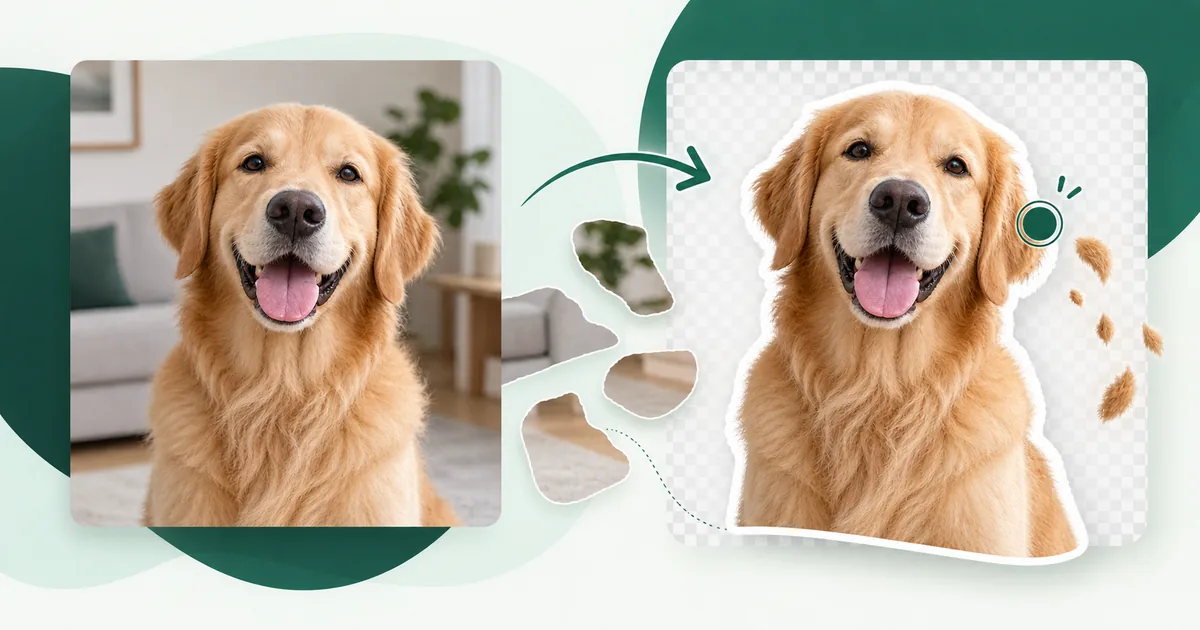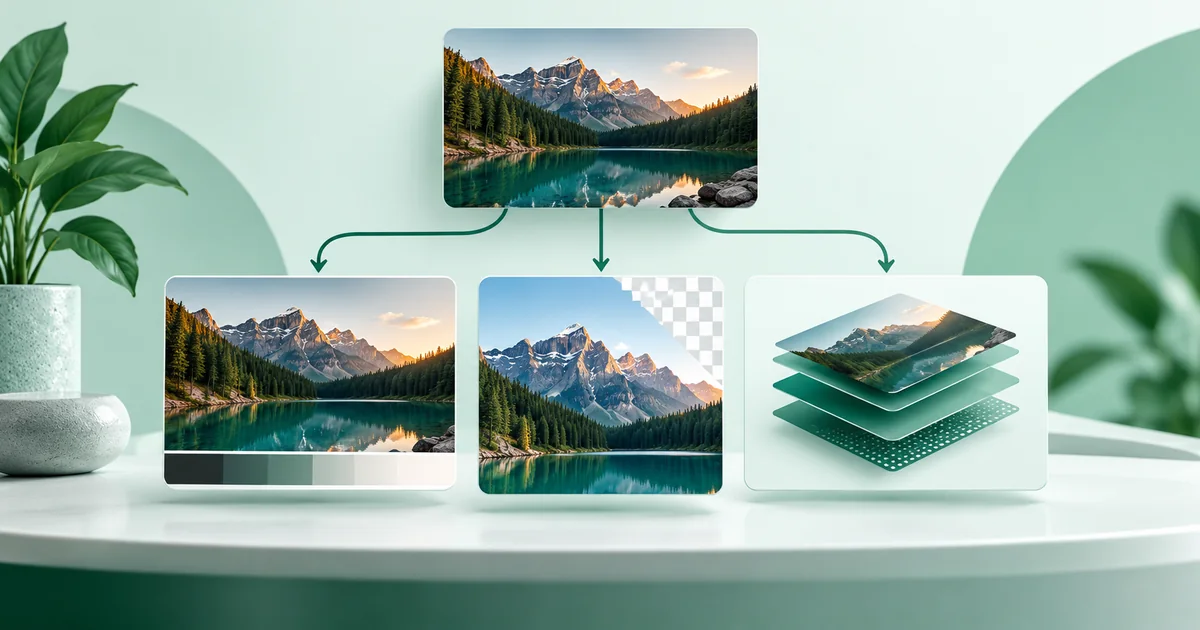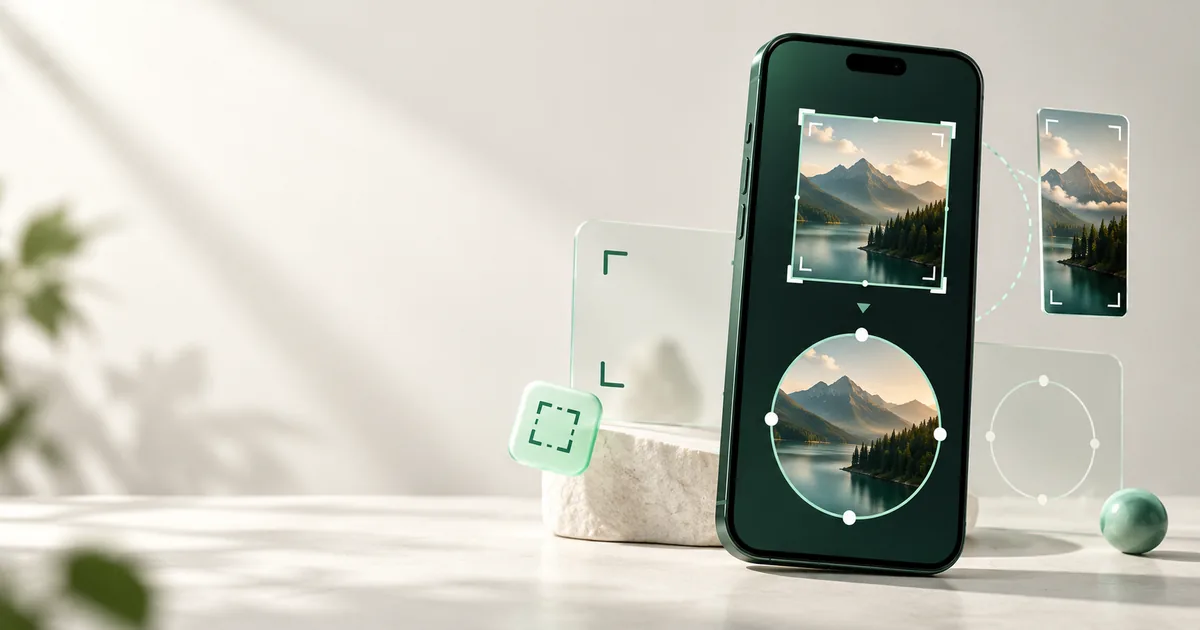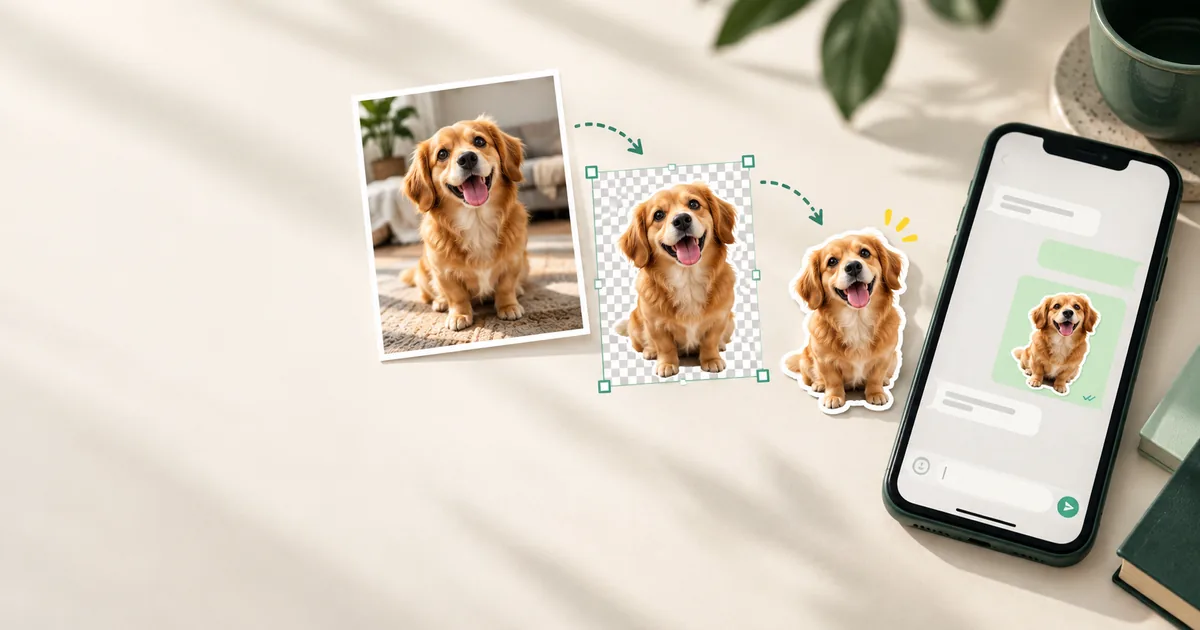
You can turn almost any clear photo into a WhatsApp sticker in a few minutes. Remove the background, place the cutout on a 512 × 512 transparent canvas, export it as WebP at 100 KB or less, then add it through a compatible sticker pack workflow.
What does a WhatsApp sticker file need?
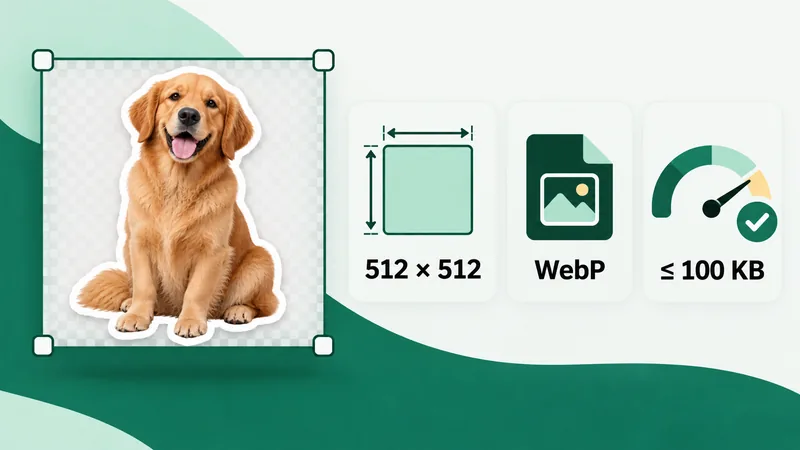
A static WhatsApp sticker must be exactly 512 × 512 pixels, use WebP, have a transparent background, and stay at or below 100 KB. WhatsApp’s official sample also recommends a white outline so the artwork remains visible on light, dark, colored, and patterned chat backgrounds.
| Requirement | Static sticker | Why it matters |
|---|---|---|
| Canvas | 512 × 512 px | Required square sticker dimensions |
| Format | WebP | Preserves transparency efficiently |
| File size | 100 KB or less | Required limit for a static sticker |
| Background | Transparent | Lets the subject sit naturally in a chat |
| Outline | White, about 8 px | Recommended for contrast on varied backgrounds |
| Pack size | 3–30 stickers | Requirement for app-based sticker packs |
| Tray icon | 96 × 96 px, up to 50 KB | Represents the pack in the sticker picker |
Those are the technical rules. The visual rule is simpler: a sticker should still make sense when it’s small. Fine hair, thin straps, tiny fingers, and complicated scenery can look impressive while you edit, then collapse into a fuzzy shape in the chat.
Step 1: Which photo makes a good sticker cutout?
Pick the original camera photo of a sharp, clearly outlined subject if you have it. A screenshot or an image saved from another chat has often been compressed already, which makes the edges harder to separate cleanly.
The easiest subjects have a clear outline and visible contrast against the background. A person in a dark jacket against a pale wall is easier than dark hair in front of a shadowy room. Pets work beautifully when the ears, paws, and tail are visible, but fur needs a reasonably sharp source photo.
Our quick photo checklist
- The subject is in focus and large enough to recognize.
- Important edges aren’t cut off by the original frame.
- The background doesn’t have the same color and texture as the subject.
- The expression or gesture reads without needing the rest of the scene.
- You have permission to use the photo, especially if someone else is pictured.
Step 2: How do you remove the photo background?
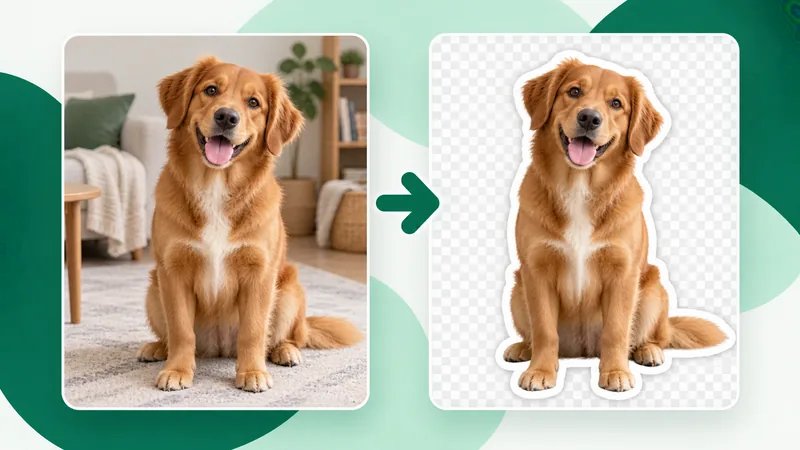
Cut the subject out onto a transparent background; the image won’t look like a convincing sticker until you do. In WaSize Sticker Maker, try Remove background first when the photo has a white wall, studio color, sky, or another fairly even edge. The tool follows connected pixels with a similar color from the image corners and clears them locally in your browser. For tolerance choices and detailed edge repair, use the focused guide to removing a photo background for a WhatsApp sticker.
Check the difficult edges
Color-based removal is quick, but it can struggle when the subject and background share a color. Zoom in and inspect the entire outline. Use Remove area to clear a connected patch, Restore area to bring a selected region back from the original, or the smaller brushes around hair, fur, eyeglasses and fingers.
Don’t polish forever. Stickers are viewed small, and a slightly simplified edge often looks cleaner than a noisy attempt to preserve every strand of hair. The goal is a confident silhouette, not forensic accuracy.
Step 3: Does a sticker need a white outline and margin?
Yes. A white outline separates the subject from whatever sits behind it in the chat. WhatsApp’s sample documentation recommends an 8-pixel white stroke around sticker artwork. That’s a good starting point, not a creative prison: a chunky cartoon cutout might take a little more, while a delicate object can use slightly less.
Leave a modest transparent margin between the outline and the canvas edge. If the artwork touches all four sides, it feels cramped and can look clipped. If it sits too small in the middle, the sticker loses impact. We aim for the subject to occupy roughly 80–90% of the available width or height, depending on its shape.
Text on photo stickers
Short text can work—“NOPE,” “LATE,” or a name—but use a bold face, high contrast, and very few words. Type that looks comfortably readable at 512 pixels may disappear when the sticker is shown at chat size. Add the text before the final resize and check it at roughly thumbnail scale.
Step 4: How do you resize to 512 × 512 and export WebP?
- Open WaSize Sticker Maker and choose your photo.
- Keep the canvas at 512 × 512 pixels. Use Whole photo or Fill square, then drag the subject into place.
- Remove the simple edge background, refine it with selected-area or brush tools, and keep the canvas transparent.
- Add a short caption if you want one and drag it to a clear position.
- Download the WebP after WaSize verifies the real format, dimensions and 100 KB limit.
How to get under 100 KB without ruining the image
Photo stickers are harder to compress than flat drawings because fur, skin, fabric, and shadows contain thousands of small color changes. Start by confirming the canvas is only 512 × 512. Then lower WebP quality a little at a time and compare the ears, eyes, text, and outline.
If compression creates gritty edges before the file becomes small enough, simplify the source. Remove unnecessary shadow texture, soften noisy areas, or reduce subtle color variations. A sticker doesn’t need every pore and carpet fiber from the original photo.
WhatsApp notes that many of its own stickers are around 15 KB, but that’s a reference rather than a target every photo sticker must reach. A clean 70 KB sticker under the official limit is perfectly reasonable.
Step 5: How do you add the sticker to WhatsApp?
Use a trusted sticker-maker or pack-import workflow available for your device, because the finished WebP file still needs to be registered as a sticker. The interface changes between Android, iPhone, WhatsApp versions, and third-party apps, so follow the importer’s current prompts rather than expecting one universal button sequence.
If you’re building a distributable sticker app, WhatsApp’s official sample requires packs of 3 to 30 stickers and a 96 × 96 tray icon. For a casual personal sticker, a reputable sticker maker usually handles the pack structure for you.
How do you fix common WhatsApp sticker problems?
The sticker has a white rectangle behind it
The background wasn’t actually transparent, or it was saved as JPG along the way. Return to the cutout step and save a transparent PNG or WebP before resizing.
The edges look jagged
Use the original photo, refine the mask, and avoid enlarging a tiny cutout. A slim white outline also hides small edge defects and improves contrast.
The subject looks tiny
Crop empty transparent space before the final resize, then scale the artwork up while preserving a safe margin around the outline.
The file is still over 100 KB
Confirm it’s 512 × 512 WebP, lower quality gradually, and simplify high-detail areas. Don’t shrink the canvas below the required dimensions.
The sticker won’t import
Check the format, dimensions, and size first. If those are correct, try a different file name and confirm that your sticker-maker or pack importer supports static WebP files on your current device.
FAQ: making WhatsApp stickers from photos
What size should a WhatsApp sticker be?
Exactly 512 × 512 pixels. Static stickers should be WebP and no larger than 100 KB.
How do I make the background transparent?
Open the photo in WaSize Sticker Maker and try Remove background when the edges are a fairly even color. Use Remove area, Restore area, or the manual brushes to refine the cutout before exporting it as WebP.
Can WaSize remove the photo background?
Yes, for simple color backgrounds. WaSize follows similar connected colors from the image edges and includes selected-area and brush cleanup. It isn’t AI subject detection, so complex hair, fur, and matching foreground colors need manual care.
Why is my sticker larger than 100 KB?
Photographic detail is expensive to encode. Lower WebP quality gradually or simplify noisy textures while keeping the canvas at 512 × 512.
Do I need a sticker maker app?
You need a compatible creation or pack-import workflow to add the finished file to WhatsApp. The available options depend on your phone and app version.
Make the first one simple
For your first sticker, pick one expressive subject with a clean outline. Remove the background, add a white border, leave a little margin, and export the correct WebP file. Once that workflow feels natural, try text, props, reaction sets, or a complete themed pack.
If you need a reminder of every WhatsApp image dimension—not just stickers—keep our complete WhatsApp image size guide nearby.
Sources and how we checked
The 512 × 512 canvas, WebP format, 100 KB static-sticker limit, 3–30 stickers per pack, 96 × 96 tray icon up to 50 KB, the recommended 8-pixel white outline and the note that many WhatsApp stickers are around 15 KB all come from WhatsApp’s official sticker sample linked below. The photo checklist, the 80–90% subject fill and the advice to lower WebP quality gradually are WaSize working recommendations, not official requirements. Last checked October 26, 2026.