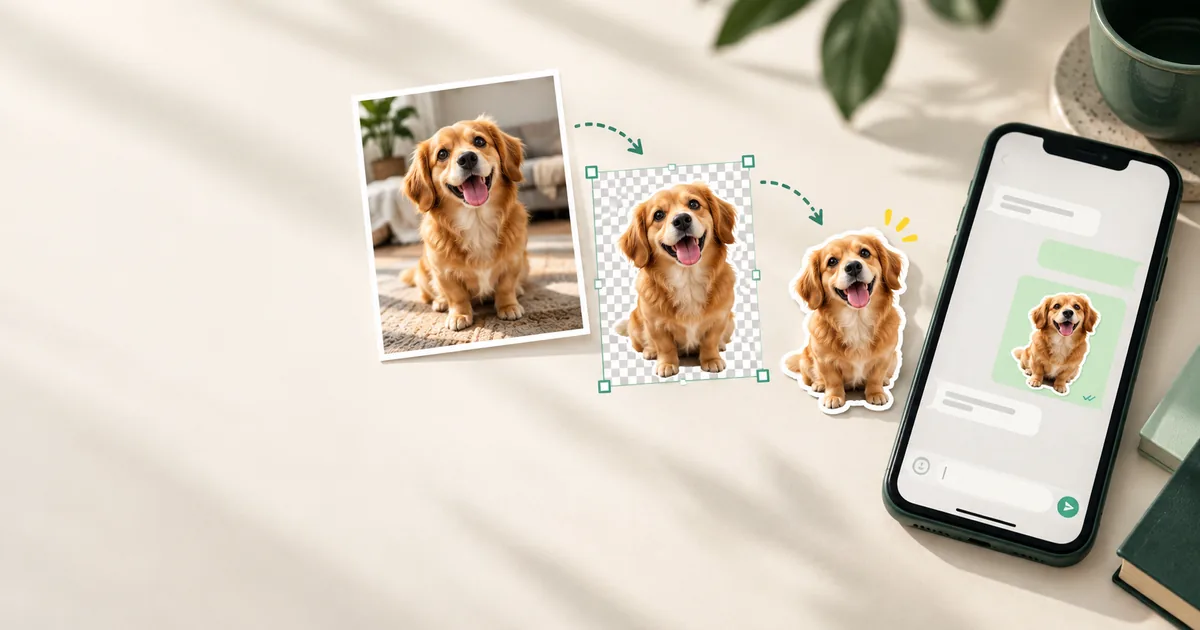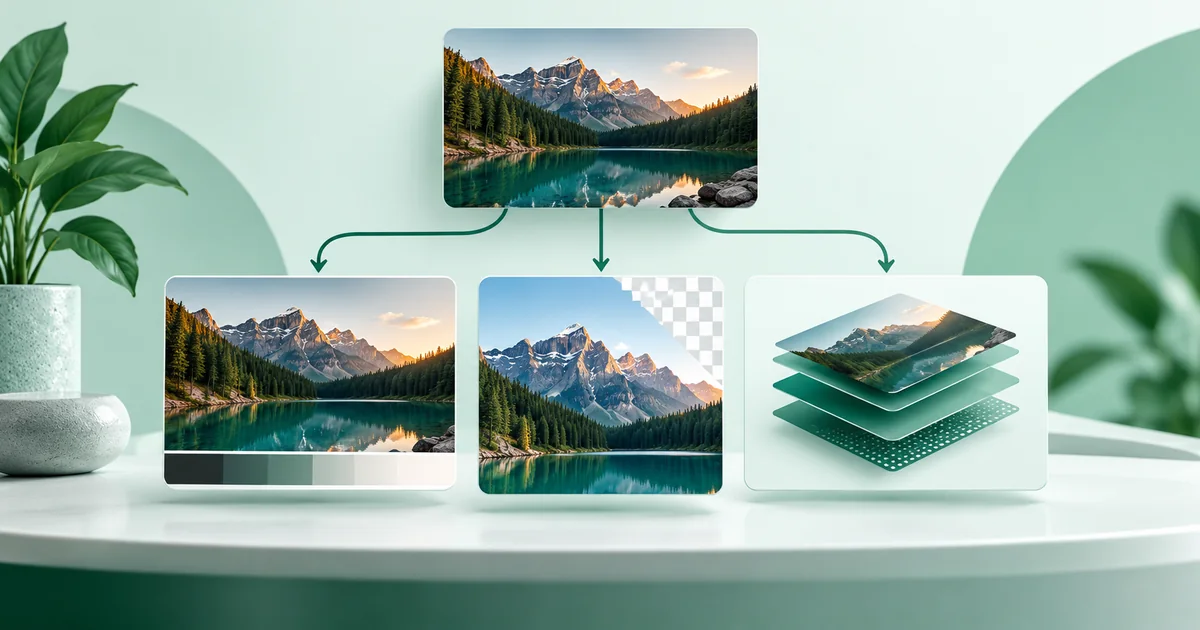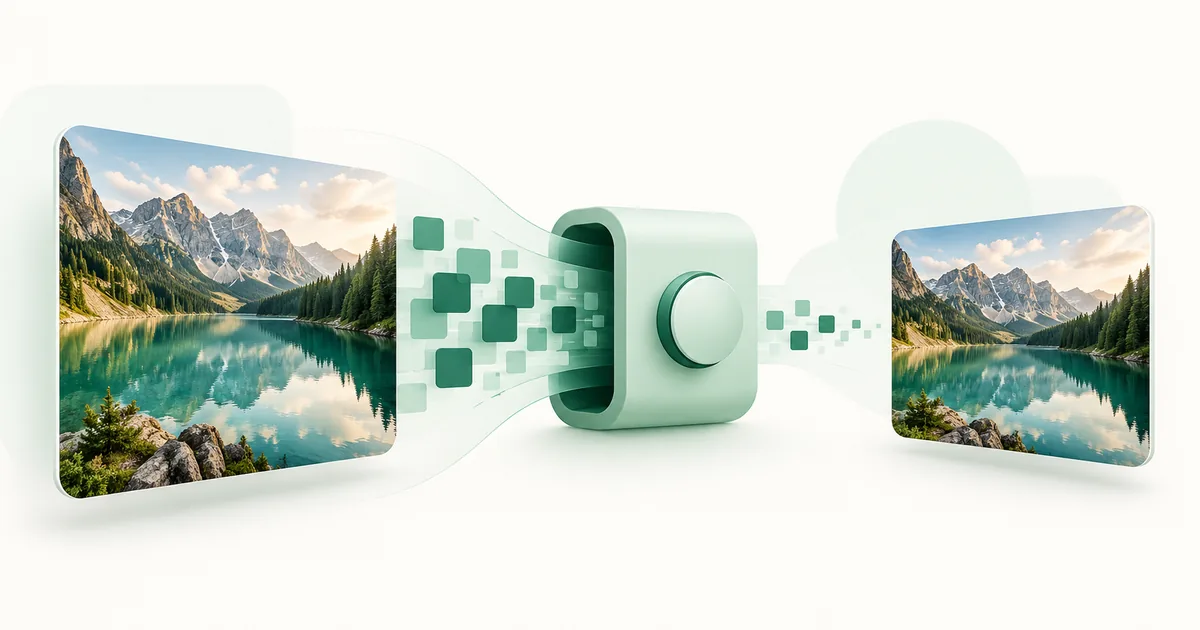
To remove a photo background for a sticker, begin with a subject that is easy to separate from a plain outer background. Let WaSize clear the connected background color, then restore any hair, fur, clothing, or object edges it removed. Finish with small manual brush corrections and export a transparent 512 × 512 WebP at 100 KB or less.
How do you remove a photo background for a WhatsApp sticker?
Open the photo in WaSize Sticker Maker, choose Remove background, adjust Color tolerance conservatively, and use Restore area or the restore brush wherever the subject was caught. Check the cutout on light and dark previews before downloading the verified WebP.
Background removal is rarely one perfect click. A simple tool can clear a large white wall or studio color quickly, but the boundary around fur, hair, glasses, hands, and clothing still deserves attention. Working from broad edits to small ones is faster and safer than trying to trace the whole subject manually.
Which photos work best for background removal?
The best source has a large, sharp subject and a fairly even background that reaches the image edges. A pet against a plain wall is a strong candidate. A person standing in front of trees, railings, and people wearing similar colors is much harder.
| Source photo | Likely result | Why |
|---|---|---|
| Dark subject against a pale wall | Clean and quick | Strong color separation at the outer edge |
| Product on a solid studio backdrop | Usually clean | One connected background color surrounds the object |
| Portrait against a soft sky | Good with repair | The broad sky clears easily, but hair may need restoration |
| Pet on grass | Mixed | Fine fur and detailed grass create many similar edge colors |
| Crowded room or street | Manual work | The background contains disconnected colors and complex objects |
| Low-resolution forwarded image | Ragged edges | Compression artifacts blur the boundary before editing begins |
Start from the original camera photo when possible. Screenshots and images downloaded from a chat may already contain halos, blocky color transitions, or lost detail. A clean source gives both the automatic selection and your manual brush a better edge to follow.
What does the Remove background button actually do?
WaSize samples similar colors connected to the four image corners and clears that connected region. This is useful because the background usually touches the outside of a well-composed photo while the subject sits toward the middle.
Color tolerance controls how far the selection can travel through color differences. A low value is cautious: it may leave patches of background behind. A high value removes more, but it can also enter the subject when the subject and backdrop share a color. There is no universal perfect value because every image has different light, noise, shadows, and edge contrast.
The key word is connected. A patch of wall visible through the gap between an arm and the body may be isolated from the image edge, so automatic corner cleanup might not reach it. Use Remove area to select that remaining connected patch, or erase it with the brush.
How do you remove the background in six steps?
- Choose a clear source. Pick a photo where the person, pet, reaction, or object is recognizable at small size. A plain outer background will save editing time.
- Open WaSize Sticker Maker. Select the original image, then drag and zoom until the subject fits comfortably inside the square canvas.
- Remove the simple background. Open the background controls and select Remove background. The editor clears similar color connected to the image edges.
- Adjust Color tolerance. If too much subject disappears, undo, lower the tolerance, and run the removal again. If broad background remains, raise it gradually rather than jumping straight to the maximum.
- Repair the cutout. Use Restore area for a connected missing region, the restore brush for precise subject details, and the erase brush for isolated background fragments.
- Preview and export. Check both light and dark backgrounds, leave space around the subject, then download the checked 512 × 512 WebP.
How do you clean up hair, fur, hands, and enclosed gaps?
Restore first when the automatic pass took too much; erase second when background fragments remain. This order protects the source detail. WaSize keeps the original pixels available for restoration, so you are not painting an approximation back onto the image.
When the subject shares the background color
A white shirt against a white wall, dark hair against a dark curtain, or tan fur on a beige carpet can confuse color-based removal. Undo the aggressive result and reduce the tolerance. It is usually better to leave a little background for manual erasing than to lose a large section of the subject.
When background remains inside a gap
Switch to Remove area and select the enclosed patch. This works well between an arm and torso, inside a handle, or between a pet’s legs when that region has a reasonably consistent color. If the selection reaches the subject, undo and lower the tolerance before trying again.
When the edge looks too harsh
Do not chase every individual hair at normal editing zoom. A sticker is seen small, so a coherent silhouette matters more than microscopic detail. Use a moderate brush, zoom in only for obvious mistakes, then zoom out frequently to judge the actual reading size.
How do you check that the cutout looks right?
Check it on both light and dark previews, because a transparent checkerboard confirms empty pixels but does not show how the sticker will feel in a chat. Pale halos appear most clearly on dark backgrounds; accidentally erased dark edges often appear on light ones.
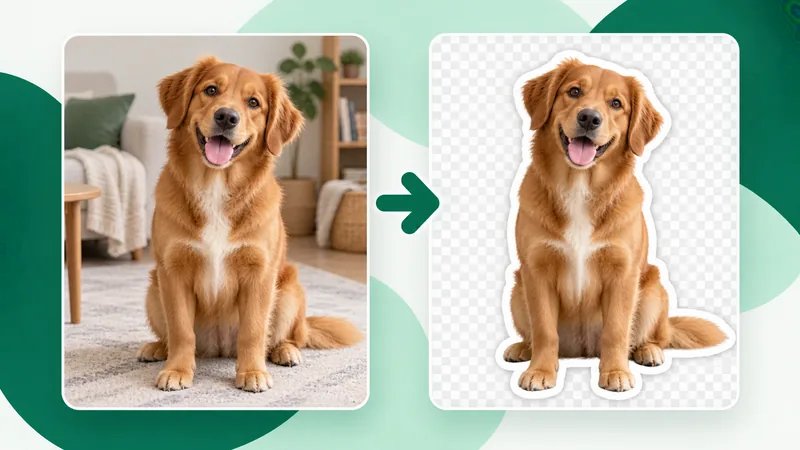
Also check the composition, not only the edge. Leave a little empty space around ears, hair, hands, and props. A subject that touches the 512-pixel boundary can feel cramped or lose the benefit of its outline. If the reaction depends on a face, make that face large enough to read from a sticker tray.
- Zoom out until the sticker is roughly chat size. The expression should still be obvious.
- Scan the outer silhouette for leftover wall, floor, or sky fragments.
- Inspect enclosed gaps for small opaque islands.
- Compare light and dark previews for halos or missing edge pixels.
- Keep text short and away from the outer boundary if you add a caption.
What format should you export a transparent sticker in?
For a static WhatsApp sticker, finish at 512 × 512 pixels in WebP and keep the file at or below 100 KB. Those are official requirements in WhatsApp's Android sticker sample. The current WhatsApp Help Center also lists 512 × 512 and a 100 KB maximum for uploaded static stickers.
WaSize tries multiple WebP quality levels and checks the encoded file header, dimensions, and actual byte size before offering the sticker-ready download. A PNG copy is useful for keeping an editable transparent image, but renaming a PNG file to .webp does not convert it.
Removing a complicated background can also reduce file size because large transparent areas need less photographic detail. Still, fine fur, noise, captions, and many semi-transparent edge pixels can make compression harder. A tighter composition and a cleaner cutout usually help more than repeatedly lowering quality.
For the full path from choosing a photo through adding text and preparing the final artwork, use the companion guide to making WhatsApp stickers from photos.
FAQ: removing a background for a sticker
Can WaSize remove every photo background automatically?
No. WaSize removes similar colors connected to the image edges, so it works best with plain walls, studio backdrops, skies, and other fairly even backgrounds. It is not AI subject detection. Complex scenes need manual erasing and restoration or a different source photo.
Why did background removal erase part of my subject?
The subject probably shares colors with the background at a connected edge. Undo the edit, lower the color tolerance, try again, and restore any missing detail with Restore area or the restore brush.
Should a WhatsApp sticker have a transparent background?
Transparency makes a cutout feel like a sticker rather than a square photo. WhatsApp's official sticker sample describes stickers as images with transparent backgrounds, although the most important technical checks for a static sticker are its 512 × 512 dimensions, WebP format, and file size.
What size and format should a static WhatsApp sticker use?
WhatsApp's official Android sticker sample requires static sticker art to be exactly 512 × 512 pixels, use WebP, and stay at or below 100 KB.
Does downloading a WebP add it to WhatsApp automatically?
No. WaSize creates and downloads one valid image file; it does not register or import a sticker pack. Use WhatsApp's current custom-sticker flow or a compatible pack workflow to add or send the finished artwork.
Let the source photo do half the work
A plain background and a clear subject will beat a heroic cleanup of a crowded scene. Start with the cleanest source you have, make a conservative automatic pass, and spend your attention on the few edges that affect recognition.
Once the silhouette reads well on both light and dark backgrounds, export the checked WebP and keep the PNG copy only if you want a reusable transparent master.
Sources and how we checked
The 512 × 512 WebP format, the 100 KB static-sticker limit and the recommended 8-pixel white outline come from WhatsApp’s official Android sticker sample, and the Help Center page linked below also lists 512 × 512 and 100 KB for uploaded static stickers and describes the current custom-sticker flow. The photo suitability table, the tolerance and restore-before-erase advice and the light-and-dark preview checks are WaSize working recommendations, not official requirements. Last checked October 26, 2026.