Use a 640 × 640 pixel square for your WhatsApp Channel icon and design it for a circular crop. For image updates, start with 1080 × 1080 for a square, 1080 × 1350 for a portrait, or 1200 × 675 for a landscape. These are practical WaSize working sizes—not mandatory dimensions published by WhatsApp.
What size should WhatsApp Channel images be?
A 640 × 640 square is the simplest Channel icon master; a 1080 × 1080 square is the most dependable all-purpose image-update canvas. Keep faces, logos, and essential text away from the edges. Switch to 4:5 portrait when height helps the story, or 16:9 landscape for genuinely wide subjects.
A Channel icon and a Channel update solve different problems. The icon must remain recognizable at a tiny size and inside a circle. An update has more room, but it still needs a clear focal point when followers scan the Updates tab. Preparing them as separate assets gives both a better chance to work.
What are the recommended sizes for each Channel image?
Use 640 × 640 for the icon and 1080 × 1080, 1080 × 1350 or 1200 × 675 for updates—the smallest set of reusable canvases that covers your actual content. A centered square handles the icon and most updates; portrait and landscape versions are useful when forcing the content into a square would weaken it.
| Channel asset | WaSize recommendation | Aspect ratio | Best use |
|---|---|---|---|
| Channel icon | 640 × 640 px | 1:1 | Portrait, logo, or simple mark designed for a circle |
| Square image update | 1080 × 1080 px | 1:1 | General announcements, products, quotes, and photos |
| Portrait image update | 1080 × 1350 px | 4:5 | People, posters, vertical products, and step cards |
| Landscape image update | 1200 × 675 px | 16:9 | Events, rooms, scenery, banners, and wide diagrams |
| Shared link preview | 1200 × 630 px | 1.91:1 | Open Graph image controlled by the linked website |
These dimensions are large enough for a sharp working export without treating the original camera file as the delivery asset. They also map to common design canvases, which makes it easier to reuse a layout while keeping each update intentional.
Do not upscale a small downloaded thumbnail merely to reach these numbers. A larger canvas cannot restore detail that is missing from the source.
What does WhatsApp officially say about Channel images?
WhatsApp officially supports an optional Channel icon and image updates, but leaves the pixel preparation to you. The Help Center says you can add, upload, replace, or remove the icon. Its overview of Channels lists images alongside text, videos, stickers, links, audio, and polls as supported update types.
The absence of a published size does not mean every design will look equally good. It means a dimension should be presented as production advice rather than a compliance requirement. App interfaces can also change, and previews can differ across Android, iPhone, web, and screen sizes.
WhatsApp also says media updates cannot be edited after posting, even though some text updates can be edited for a limited period. Check the crop, spelling, and export before publishing an image.
How should you design a Channel icon for a circular crop?
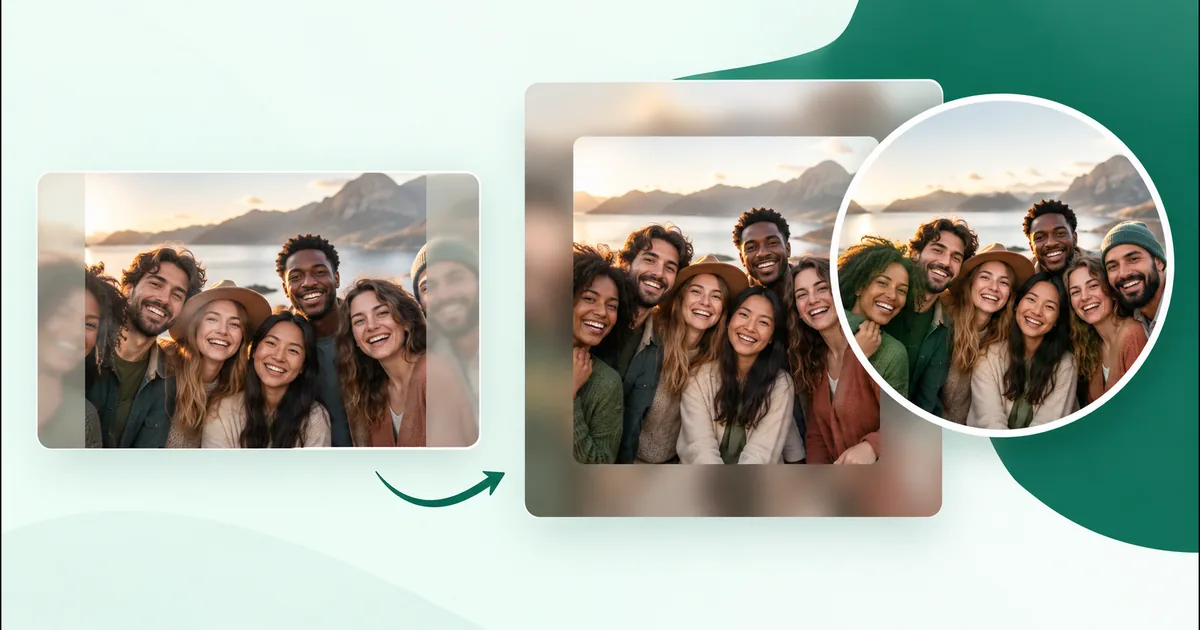
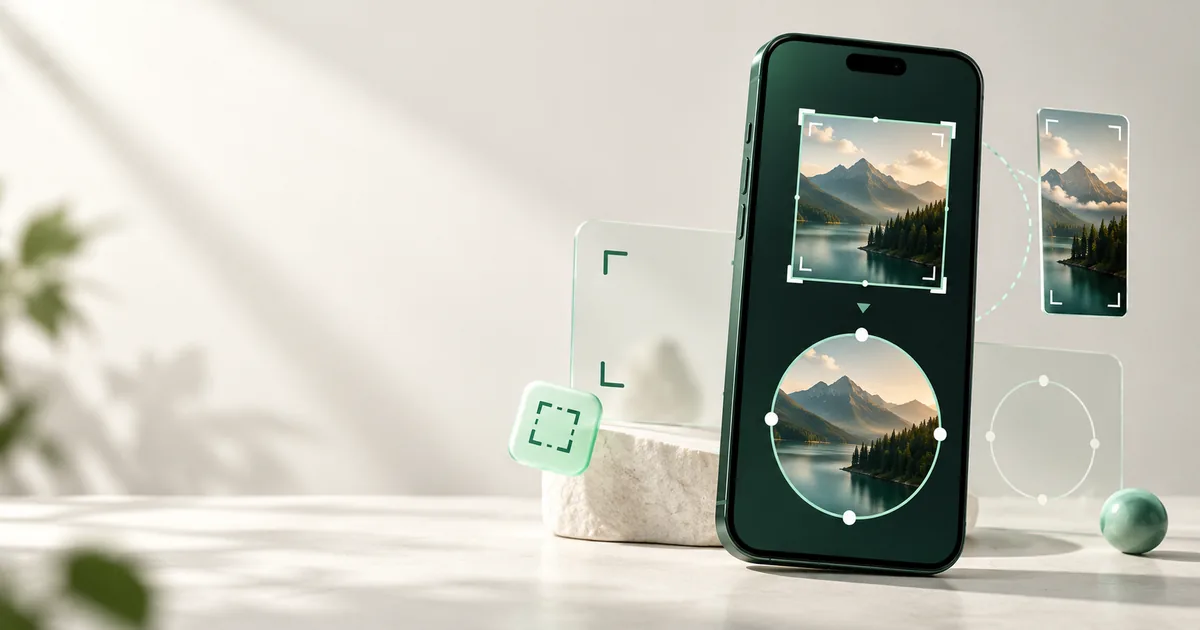
Build the icon as a square, but judge it through a circle. A 640 × 640 source gives you a practical editing canvas. The corners will not carry useful information once the image is displayed as a round icon, so keep the identifying subject near the center.
For a face or portrait
Use a close crop with the eyes near the horizontal center and some room above the head. Avoid placing another important face near a corner. At small sizes, a simple head-and-shoulders composition is usually more recognizable than a full-body photo.
For a logo or brand mark
Use the simplest version of the mark. Keep thin lettering, taglines, and narrow borders out of the icon if they disappear at thumbnail size. A little clear space around the mark prevents the circular edge from feeling cramped.
For a photo-led publication
Choose one repeatable visual cue—a recognizable object, illustration, or tightly framed subject—rather than a busy collage. The icon appears beside updates and in discovery surfaces, where clarity matters more than detail.
Which aspect ratio should a Channel post use?
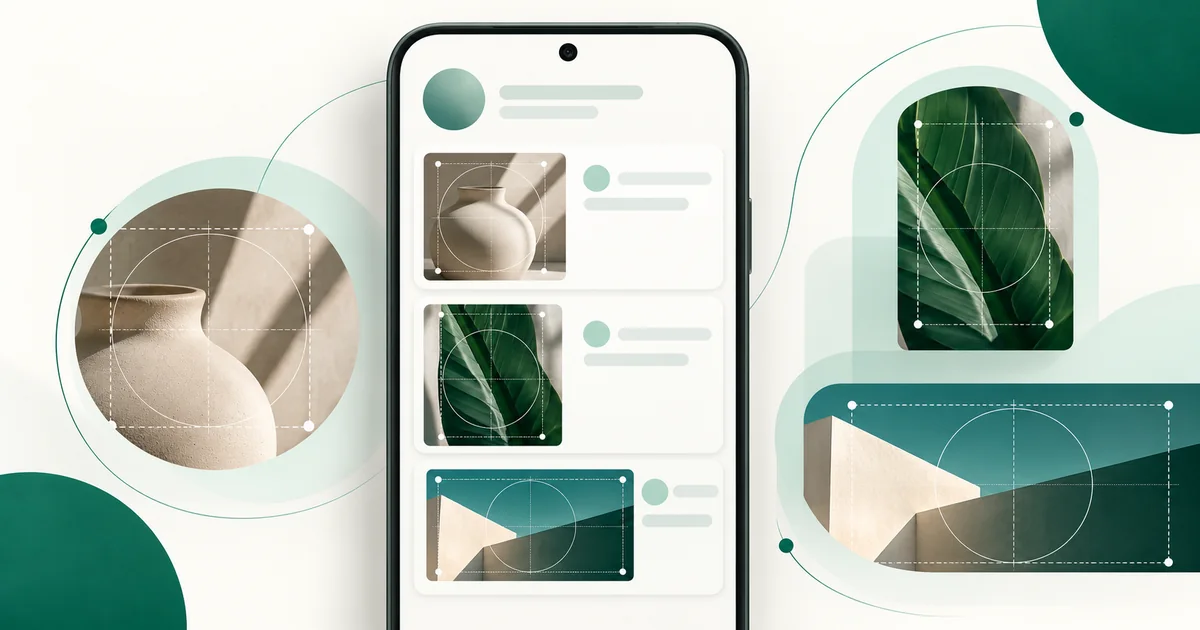
Square is the safest default, not the only correct shape. Use the aspect ratio that makes the image easier to understand without placing vital content at the outer edge.
Use 1:1 square for a repeatable feed system
A 1080 × 1080 square is easy to template and works well for product highlights, short announcements, event cards, before-and-after comparisons, and photos with one central subject. It also adapts more comfortably to alternate previews than an extremely tall or wide canvas.
Use 4:5 portrait when vertical detail matters
A 1080 × 1350 portrait gives people, clothing, packaging, checklists, and poster-like layouts more height without becoming a long infographic. Keep the headline concise and let the update caption hold supporting detail.
Use 16:9 landscape for wide scenes
A 1200 × 675 landscape suits venues, teams, scenery, product collections, presentation slides, and diagrams that naturally move left to right. Do not use it merely to imitate a banner; important details become smaller when the image is fitted to a narrow phone screen.
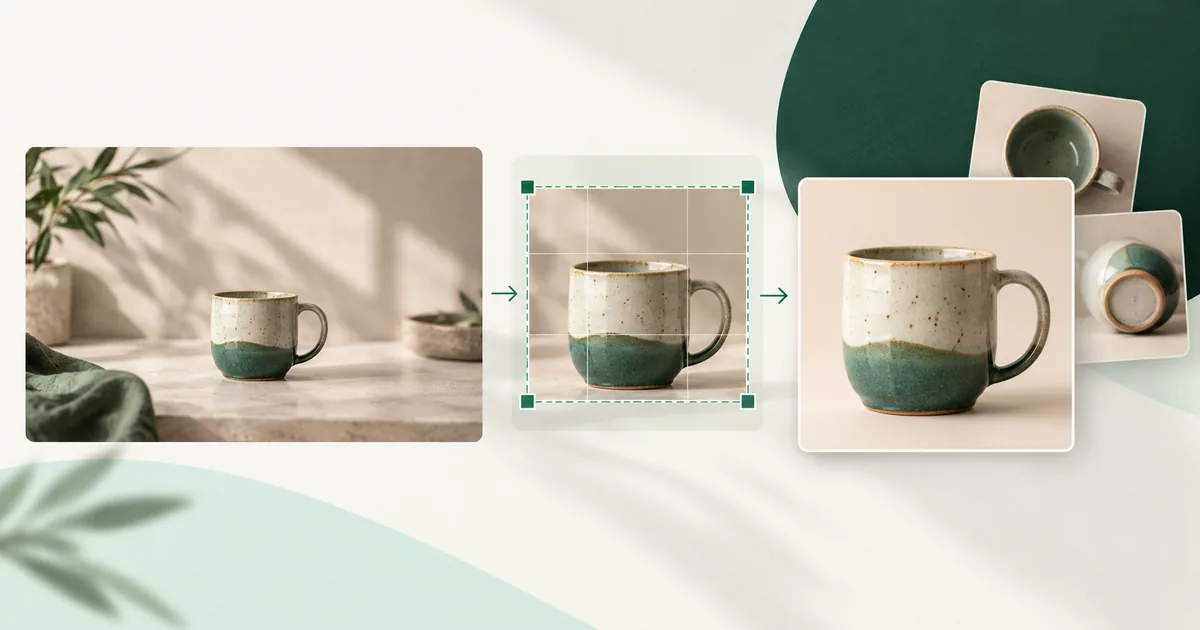
If one campaign needs all three shapes, begin with a high-resolution source and design each crop deliberately. Repeatedly cropping an already exported square into portrait and landscape versions reduces your options and may soften details.
How much safe area should Channel images leave?
Leave roughly 8–10% clear space around image-update edges. This is a design recommendation that protects content from tight previews and makes the composition feel less crowded.
- Keep names, dates, prices, faces, and logos away from the outer edge.
- Use one short message in the image; put explanations in the update caption.
- Make type large enough to read on a phone without zooming.
- Check contrast against both the image and any translucent overlay.
- Avoid screenshots containing tiny interface text.
- Preview the export at approximately phone width before publishing.
For a link update, remember that the preview image usually comes from the linked page's Open Graph metadata. Prepare that page's social image at 1200 × 630 and verify its title, description, and image separately instead of attaching a second graphic that repeats the same message.
How do you prepare a WhatsApp Channel icon with WaSize?
- Start with the original. Choose the largest clean portrait, logo, or artwork file available. Avoid a screenshot or an image downloaded from another chat.
- Choose the Channel preset. Open WaSize and select the 640 × 640 Channel icon canvas. This is a practical preset, not a platform-mandated size.
- Center the identifying detail. Position the face, symbol, or mark inside the circular preview and leave the corners expendable.
- Choose Crop or Fit. Crop spare background around a portrait. Fit a complete logo when cutting any part of it would damage recognition.
- Select the export format. Use JPG for an ordinary photo or PNG for flat graphics and logos with sharp edges.
- Inspect the small preview. Check that the icon is still recognizable at thumbnail size, then download and upload it to the Channel.
Is JPG or PNG better for WhatsApp Channel images?
JPG is the practical default for photographs; PNG is the safer choice for flat artwork, logos, and graphics with hard edges. WebP can be efficient, but JPG and PNG remain conservative choices for a manual upload workflow.
Export from the original once. A file that has already passed through messaging apps, social networks, screenshots, and repeated saves may contain visible compression before WhatsApp processes it. Saving that file at a higher quality setting cannot recreate the missing texture.
Do not chase the smallest possible file when the image already loads comfortably. Reduce oversized dimensions first, then use moderate JPG compression and inspect faces, text edges, gradients, and fine patterns. See the detailed guide to compressing images for WhatsApp without obvious blur or compare JPG, PNG, and WebP.
What Channel image mistakes should you avoid?
Designing the icon as a square only
The uploaded source may be square, but the visible icon is circular. Check the real crop and remove essential corner details.
Putting an entire poster inside one update
Tiny schedules, disclaimers, and contact details are hard to read on a phone. Use a clear headline and visual in the image, then add the rest as update text or a link.
Using one crop for every shape
A square master does not automatically become a good landscape or portrait. Return to the original source and reposition the focal point for each output.
Posting a compressed chat copy
Use the original photo or design export. A forwarded copy may already be smaller and softer before the Channel upload begins.
Assuming an unofficial size is required
WhatsApp's current Channel documentation does not mandate 640 × 640, 1080 × 1080, or the other working sizes in this guide. Use them as reliable starting canvases and judge the final result in the current app.
FAQ: WhatsApp Channel image sizes
What size should a WhatsApp Channel icon be?
WhatsApp does not publish a mandatory pixel dimension for Channel icons. WaSize recommends a 640 × 640 pixel square, designed for a circular display with the important subject near the center.
What is the best size for a WhatsApp Channel post image?
There is no single official post-image size. A 1080 × 1080 square is the safest general default. Use 1080 × 1350 for a taller portrait post or 1200 × 675 for a landscape image when the subject suits that shape.
Does WhatsApp crop Channel images?
The Channel icon is presented in a circular frame, so a square source loses its corners. Image updates can also appear in different previews and device widths, so keep essential content away from the outer edges.
Can a WhatsApp Channel post use a portrait image?
Yes. WhatsApp officially supports images in Channel updates. A 1080 × 1350 pixel 4:5 portrait is a practical WaSize recommendation when vertical detail matters without using an unusually tall canvas.
Should Channel images be JPG or PNG?
Use JPG for ordinary photography and PNG for logos, flat graphics, or artwork with sharp edges. Start from the original and avoid repeatedly saving or forwarding the file before posting.
Build for recognition first
Your Channel does not need a complicated collection of fixed templates. It needs an icon people can recognize and updates they can understand quickly.
Start with the 640 × 640 circular-safe icon and a 1080 × 1080 update system. Add portrait or landscape canvases only when the subject benefits from them, keep critical details away from the edges, and preview every export at phone size before publishing.
Sources and how we checked
- WhatsApp Help Center: how to create a WhatsApp Channel
- WhatsApp Help Center: manage Channel info and settings
- WhatsApp Help Center: about creating a WhatsApp Channel
- WhatsApp Help Center: how to edit Channel updates
The optional Channel icon, the update types WhatsApp supports (including images) and the rule that media updates can’t be edited after posting all come from the WhatsApp Help Center pages listed above. WhatsApp doesn’t publish pixel sizes for either, so the 640 × 640 icon, the 1080 × 1080, 1080 × 1350 and 1200 × 675 update canvases, the 1200 × 630 link-preview image, the 70–75% icon safe zone and the 8–10% edge margin are WaSize working recommendations, not official requirements. Last checked October 26, 2026.